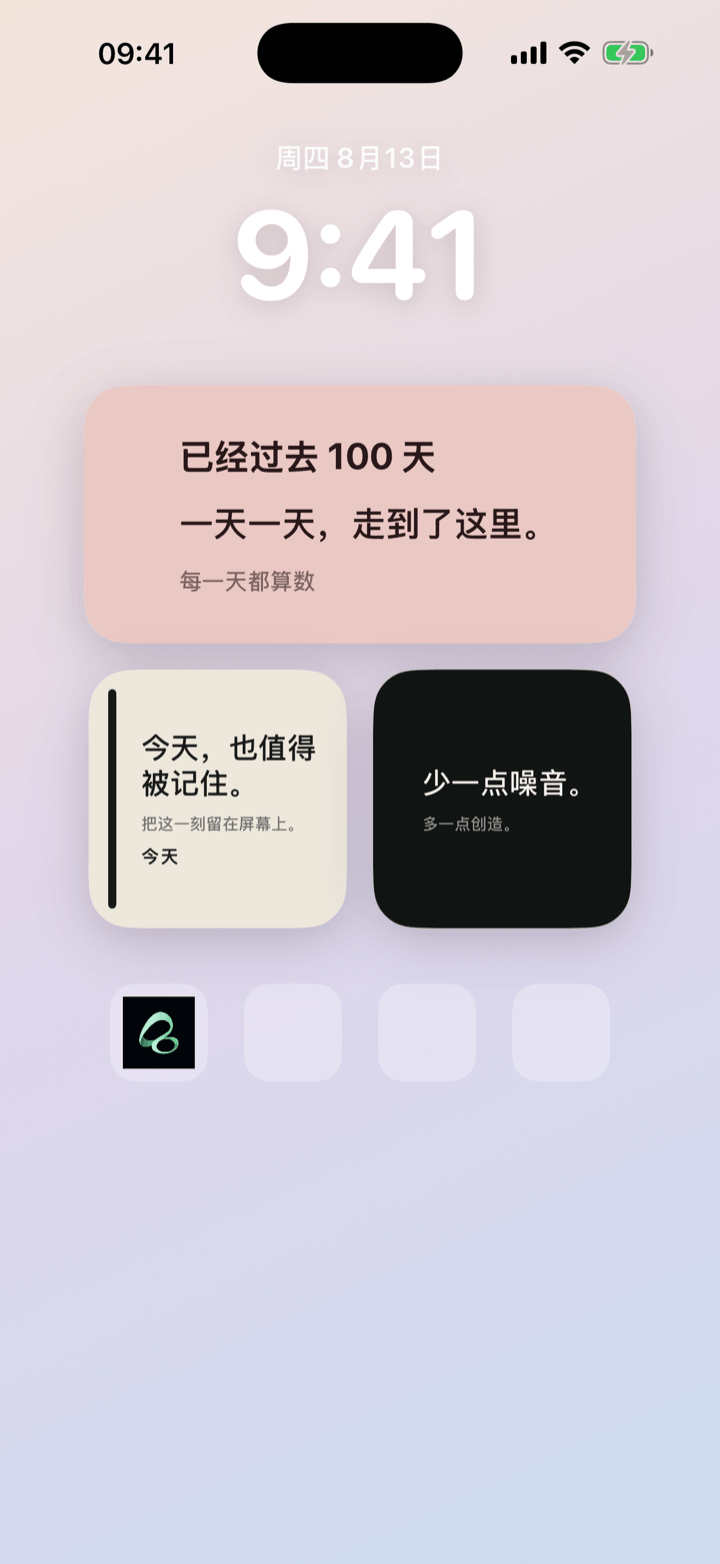
Put a city and a short message on your iPhone Home Screen. That is the useful part first: a small card can hold the place you are in and the words you want someone—or yourself—to see again.
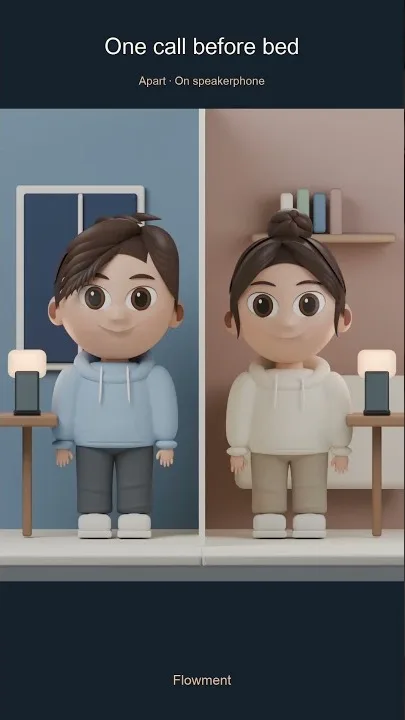
Watch the short video: I’m in Bangkok. I Miss You.
Make a location message widget in Flowment
In Flowment, a location is simply text you choose to write. Add “Bangkok”, “Home”, “On the train”, or any place that gives a note context. Pair it with one short line, then place the card on your Home Screen.
- Create a personal card in Flowment.
- Write the place name or context at the top of the card.
- Add one clear line below it, such as “I miss you”, “Made it safely”, or “Wish you were here”.
- Choose a simple style, save the card, and add it as an iPhone widget.
The card can stay personal, or you can turn the same thought into a poster to share yourself. It does not need to become a shared space to be meaningful.
A location gives a message context
“I miss you” can mean many things. “I’m in Bangkok. I miss you.” adds a little context without asking someone to open a long conversation. The place gives the message a setting; the message gives the place a feeling.
This works for more than romantic notes:
- “Tokyo — landed safely.”
- “At the airport — see you soon.”
- “Home — tea is ready.”
- “Bangkok — thinking of you.”
Keep the text brief enough to read at a glance. The Home Screen is for a quiet reminder, not a full travel update.
This is not live location sharing
A Flowment location message widget does not read your device GPS or track where you are. The city or place is written by you, just like the rest of the card. That means you decide what the card says, when it changes, and whether anyone else sees it.
If you want to stay connected with someone who is far away, use the location as a gentle detail—not as proof that they should be available. For shared countdowns, short Miss you signals, and boundaries around a shared card, read Long-distance relationship widget: more presence.
Keep the moment in sight