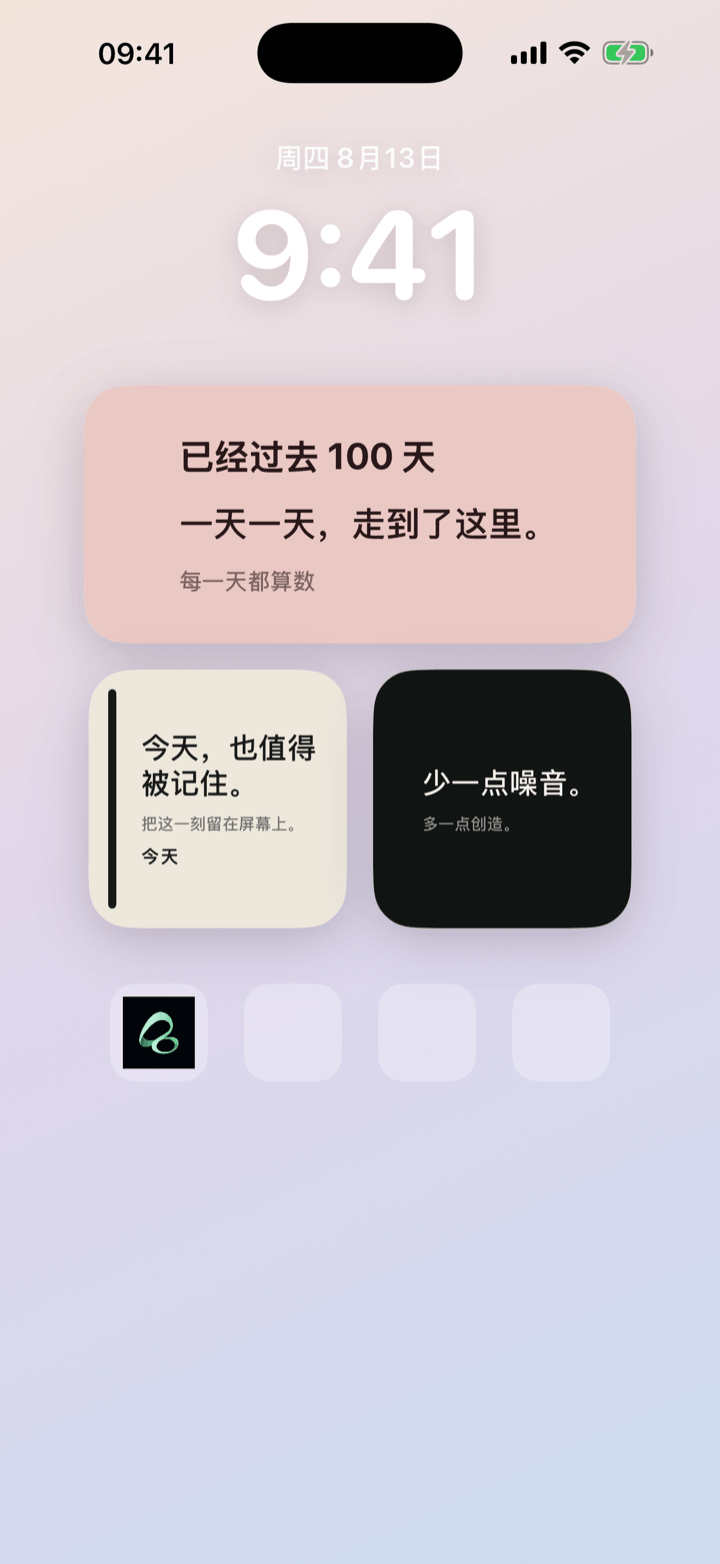
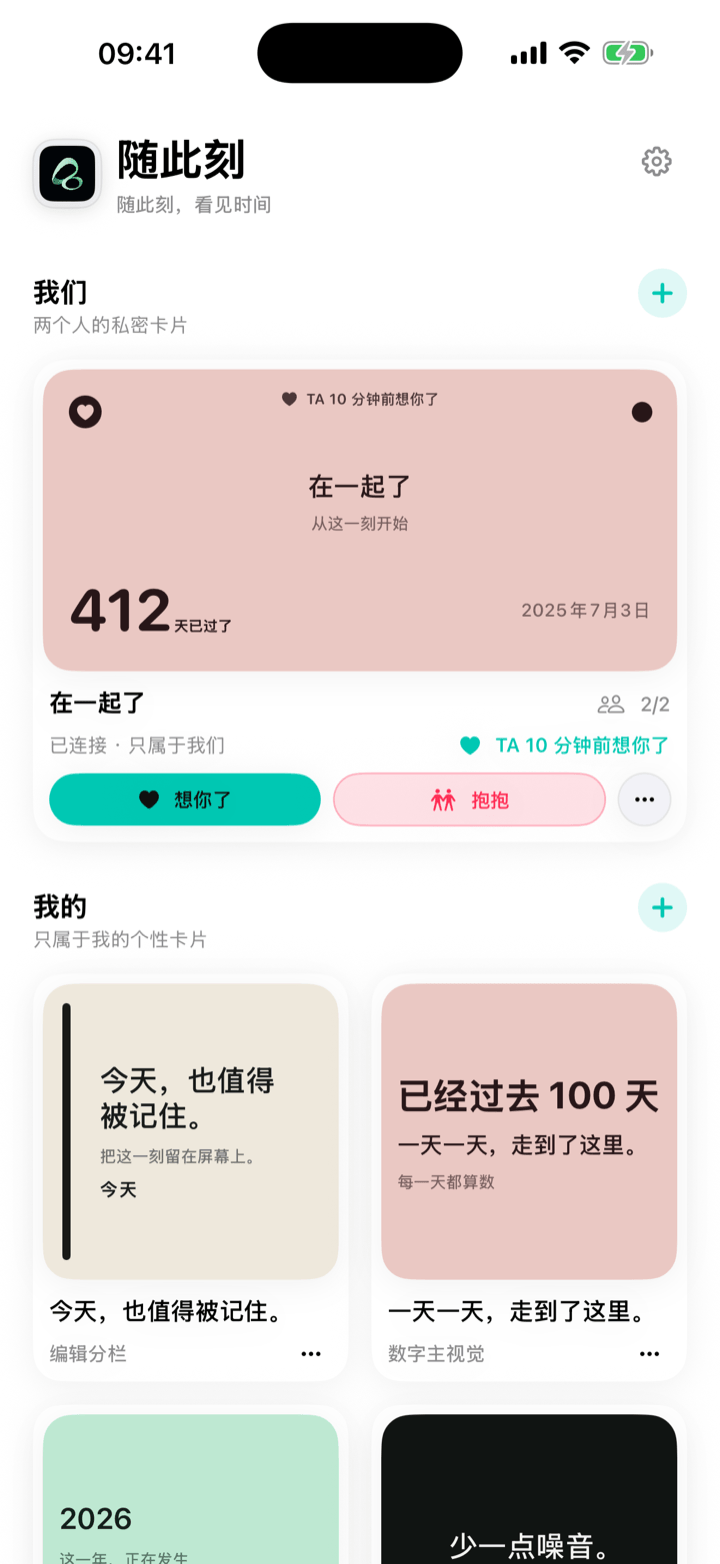
A good iPhone text widget does not need to contain much. The most useful ones keep one line, one date, or one small piece of context visible without asking you to open another app.
If you already know what you want to display and only need the setup steps, see How to Add a Custom Text Widget to Your iPhone Home Screen.
Short reminders that are worth seeing every day
A Home Screen widget works well for words that matter repeatedly but do not need a notification.
- “Take it slow.”
- “Drink some water.”
- “One thing at a time.”
- “Today is worth keeping.”
The best line is usually short enough to understand before you consciously stop to read it.
Dates that do not need to become tasks
Not every important date belongs in a reminder list. Some dates are useful simply because you want them to stay visible.
Use a countdown for something approaching:
- a trip;
- an exam;
- a birthday;
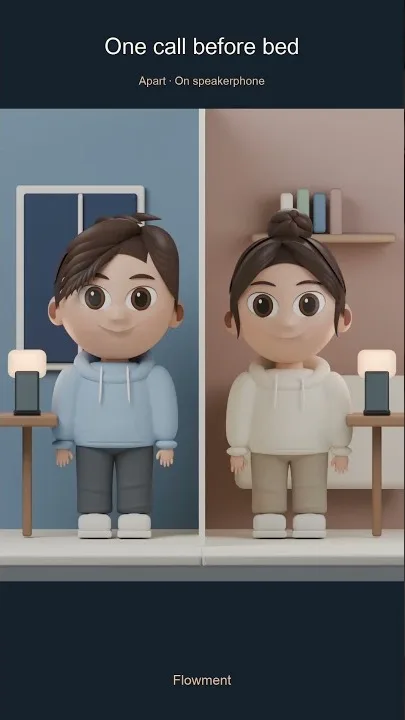
- the next time you meet someone.
Use a count-up for something already in progress:
- days since a habit started;
- time since a meaningful change;
- days together;
- how long a personal chapter has lasted.
Text and time can work together
A line often becomes more meaningful when it has a little context.
Instead of only showing “12 days,” a card can say “See you in 12 days.” Instead of only showing a city name, it can pair the place with a short thought.
Keep one element dominant. If the sentence is the point, make the text visually stronger. If the date is the point, let the number carry the card.
Small or Medium widget?
A Small widget suits one short thought or a compact date. A Medium widget gives you more room when text and time both matter.
The goal is not to use every available line. Leaving space around the content often makes a Home Screen card easier to notice.
Keep the widget private when it is personal
A Flowment personal card does not need to become public content. You can keep it only on your phone.
If you choose to generate and share a poster, sharing is explicit. Otherwise the card can remain a quiet piece of your own Home Screen.
When you have chosen what the widget should say, follow the separate setup guide: How to Add a Custom Text Widget to Your iPhone Home Screen.
Keep the moment in sight