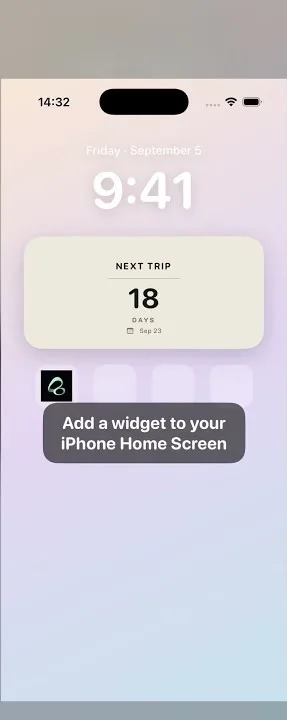
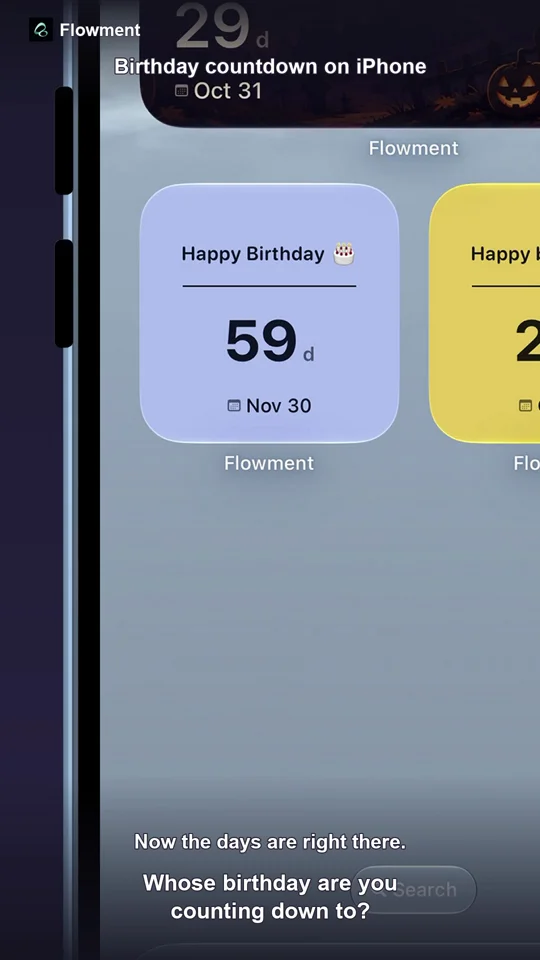
Put a payday countdown on your iPhone Home Screen by creating a personal single-date card in Flowment, choosing your expected payday, setting it to repeat every month, and selecting that card in a widget. It counts down to a date you enter—not to a bank transaction.
Watch the payday countdown setup video
A countdown for the date you are waiting for
Your shopping cart might be ready before payday is. A small countdown gives that wait a visible date without opening your calendar each time.
This setup is useful when you are paid on a fixed calendar date, such as the 15th of each month. It is not a payroll calendar: Flowment does not check your employer’s schedule, detect salary deposits, or move the date around weekends and public holidays. Enter the date you actually expect.
The recording shows October 15, 2026 as the target and 2 days remaining on October 13. That is an archived example, not a live countdown for today.
1. Create or edit a personal payday card
Create a personal single-date card, choose a theme that displays a countdown, and label it “Payday.” Set the full target date, including the year. If the expected payday has already passed, choose the next one you want to count down to.
You do not need to enter your salary, employer or bank details. A short label and the expected date are enough.
Monthly recurrence is for personal single-date cards; do not use a shared card or a date range for this setup.
2. Set the date to repeat every month
In the card’s date settings:
- Check Target Date.
- Turn on Repeat.
- Choose Months.
- Keep the interval at 1—the English recording shows “Every 1 periods.”
- Confirm the settings with the checkmark, then save the card with the editor’s checkmark.
This means one calendar month, not a fixed 30-day interval. A date on the 15th remains anchored to the 15th across months.
When you enable recurrence on an existing non-repeating card, the new rule takes effect the following day. Changes to an existing rule also take effect the following day, so the current day’s display may stay the same after saving.
3. Select Payday for the Home Screen widget
The video uses a widget that is already on the Home Screen:
- Touch and hold the widget and choose Edit Home Screen.
- While the Home Screen is in editing mode, tap the Flowment widget.
- Open its card selector and choose Payday.
- Return to the Home Screen and finish editing.
If your system offers Edit Widget directly, that also opens the widget configuration. Saving a card in Flowment does not automatically make an existing widget display it: the selected card must match.
If you have not added a Flowment widget yet, follow the Home Screen widget installation guide, then select your saved Payday card.
What happens when payday arrives?
On the date you set, the recurring card displays Today. The following day, it counts down to the next occurrence. This date transition does not mean that money has arrived or that you completed a task.
For example, with a monthly date of October 15, the card shows Today on October 15 and begins counting toward November 15 on October 16. You do not need to create another card each month.
For an anchor date such as the 31st, a month without that date uses its last day. Later occurrences are calculated from the original anchor, rather than permanently drifting to the shorter month’s date. This is calendar behavior—not an employer’s last-working-day rule.
If the count or repeat setting looks wrong
- Another card appears: reopen the widget configuration and select Payday.
- The date does not roll forward: check that Repeat is enabled, Months is selected, and both settings and the card were saved. The date itself still displays Today; the next occurrence starts the following day.
- An edited rule seems unchanged: existing-card rule changes take effect the following day.
- You cannot find Repeat: check that the card is personal and single-date, and that your app version includes recurrence.
- The widget has not caught up: verify the saved card in Flowment first. iOS controls widget refresh timing; a saved edit is not a promise of an immediate screen refresh.
- Your employer changes payday: update the expected date yourself and account for the next-day rule-change behavior. Do not rely on this widget to verify payment.
- You want to stop repeating: the current version does not offer an off switch for an already-saved recurring card. Use a separate non-repeating card and select it for the widget instead.
Start with one expected date
If you only want to check a day count once, use the Days Until Calculator. For a date you want to see every day, save the card in Flowment and place it on your Home Screen.
For a one-off date example, see the birthday countdown setup. Keep the payday card focused on the date—not your balance, budget or payment status.
Keep the moment in sight