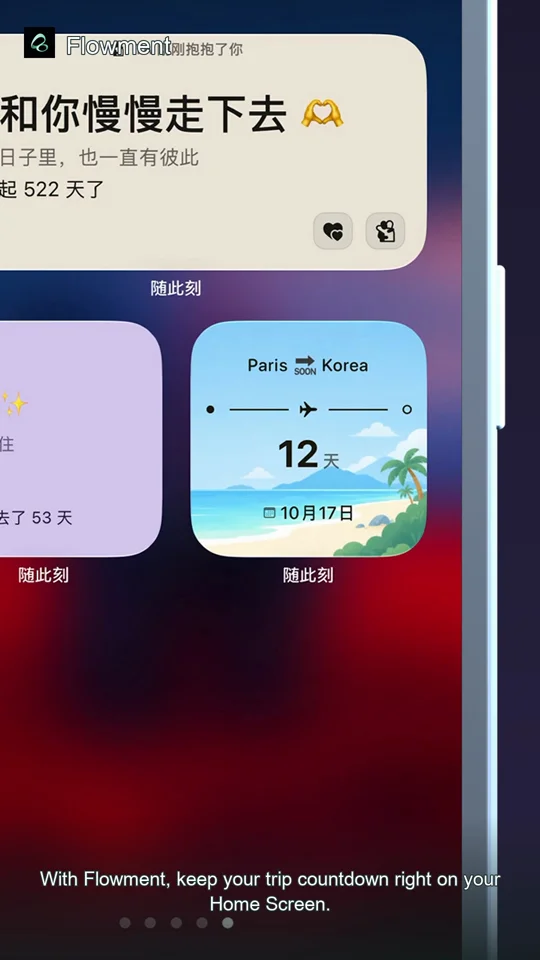
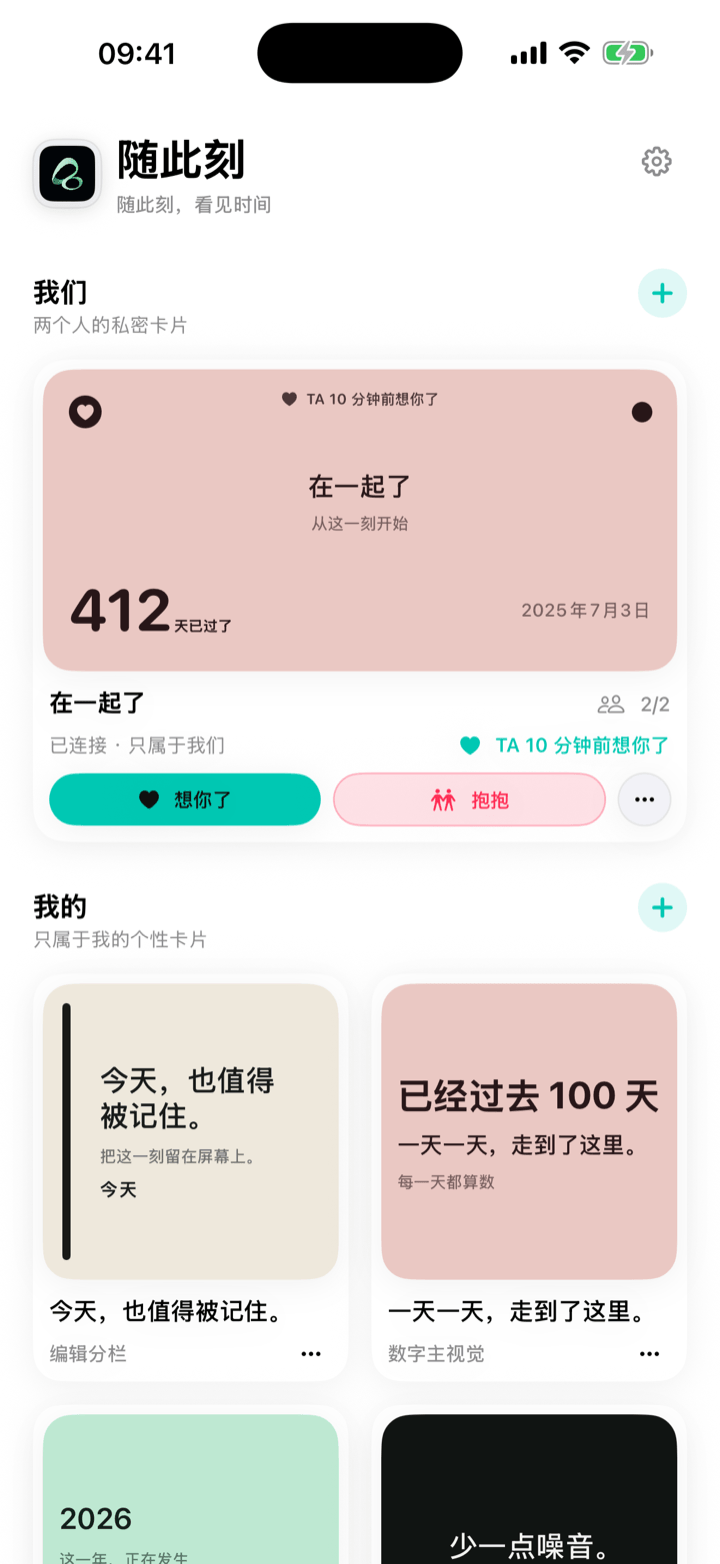
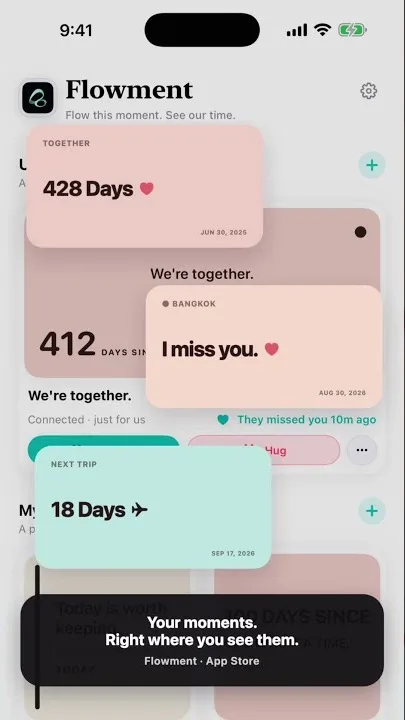
Want a countdown for Christmas, a trip, or any future date? Create one card for the date you are waiting for, then add it as a Flowment widget. The remaining days stay visible without needing to open a calendar.
Watch the short video: How to Add a Birthday Countdown to Your iPhone Home Screen
Add a countdown widget to iPhone
- Open Flowment and create a personal card.
- Choose countdown as the time direction.
- Pick the date: Christmas, a trip, birthday, exam, visit, release, or any day you are looking forward to.
- Add a short label, such as “Christmas” or “See you soon”.
- Save the card.
- On your iPhone Home Screen, touch and hold an empty area, tap Add Widget, choose Flowment, and select the card.
Once it is on the Home Screen, the countdown card shows the days remaining at a glance.
Choose a date worth seeing every day
The best countdown is usually one clear date. Christmas, the next time you meet, a birthday, or a personal deadline are all easy to understand when you unlock your phone. Choose a short label so the date is easy to recognize.
For a seasonal setup with the Halloween Moonlight theme, follow the Halloween countdown widget guide. It shows the October 31 date, theme, and finished Home Screen in a real recording.
If you need several dates, make separate cards rather than squeezing everything into one. A card with one purpose is calmer to read and easier to place in the right widget size.
Birthday countdown: choose the next birthday
Choose the next birthday date, not the person’s birth year. If this year’s birthday has passed, select next year. Give the card a short label, such as “Mum’s birthday” or “Happy Birthday 🎂”, then save it.
You can create a personal countdown card or edit an existing one. If you already have a Flowment widget, edit the widget and select your birthday card; you do not need another widget just to switch cards.
A target of November 30, 2026 shows 59 days on October 2, 2026. This is the dated example in the recording, not today’s remaining days.
If the countdown does not look right
- Wrong day count: check the full target date, including the year, and save your changes.
- Wrong card: edit the Home Screen widget and select the saved birthday card.
- Elapsed time instead of remaining days: check that the target date is in the future and the direction is countdown.
- Next year’s birthday: review the target date after the birthday. This setup uses a specific date; do not rely on it automatically rolling over each year.
For placement help, see how to add a widget to iPhone. To calculate the days first, try the Days Until Calculator.
Countdown or count-up?
Use a countdown for something ahead: a visit, anniversary, trip, or deadline. Use a count-up for time already lived, such as days together or the start of a habit.
For a relationship date, you may want both: one count-up for the days together and another countdown for the next visit or anniversary. Read Couple anniversary widget: count up or down? for help choosing between them.
Keep the moment in sight