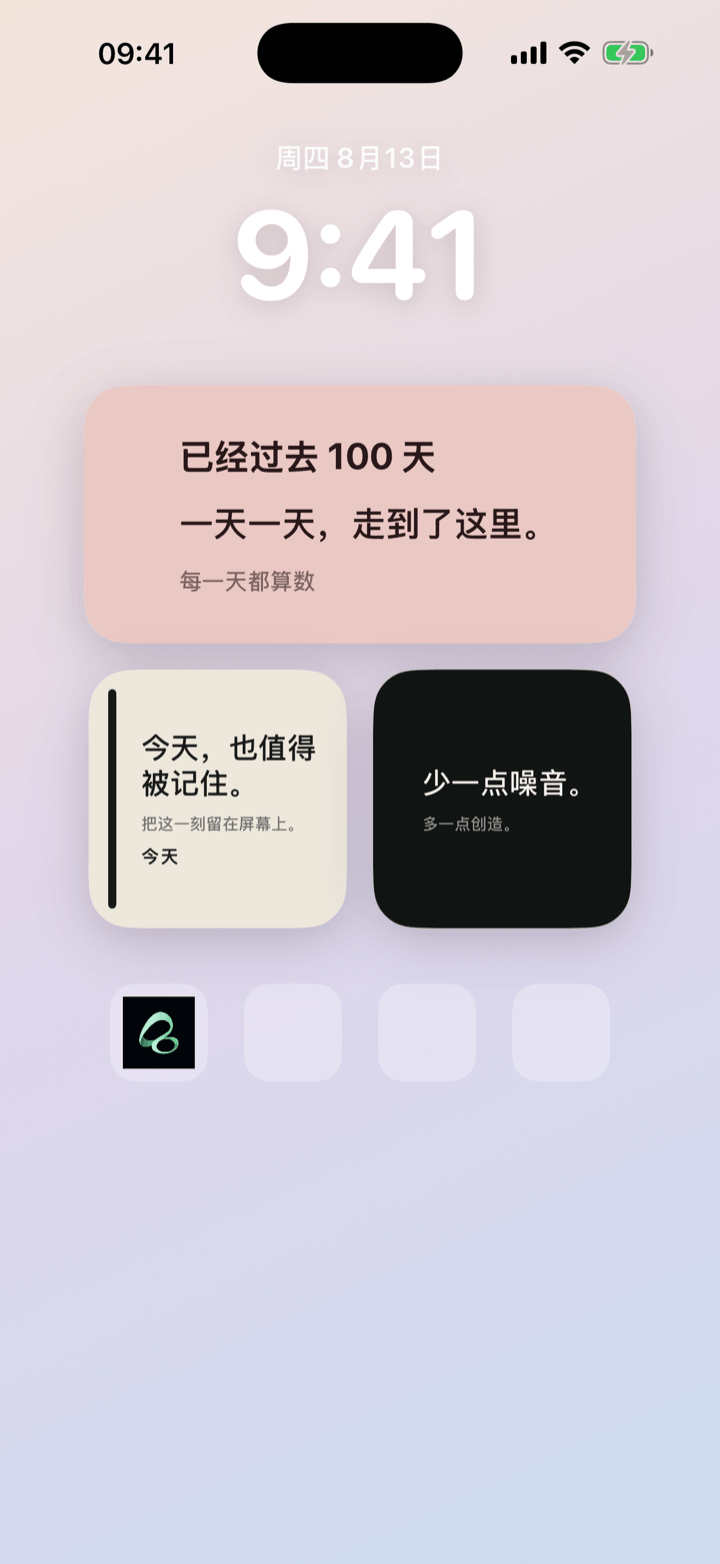
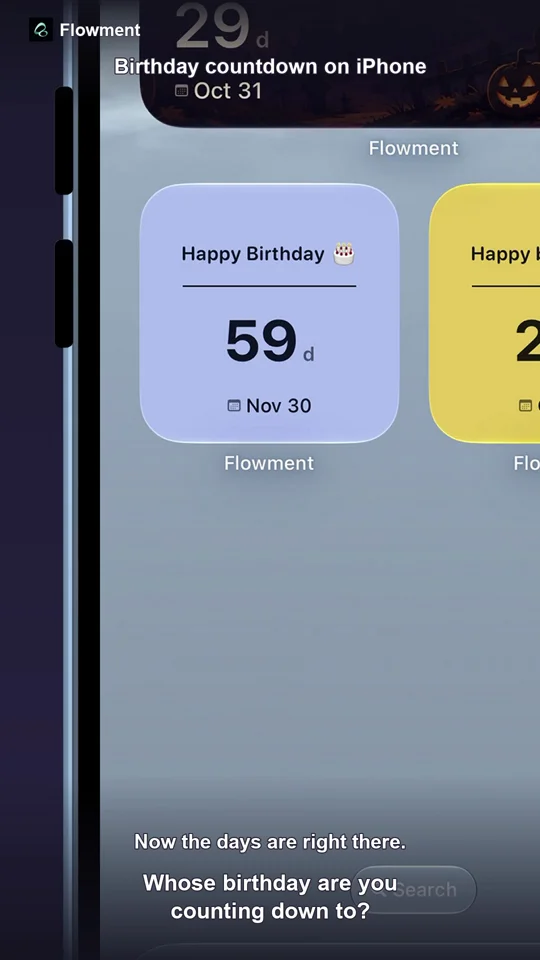
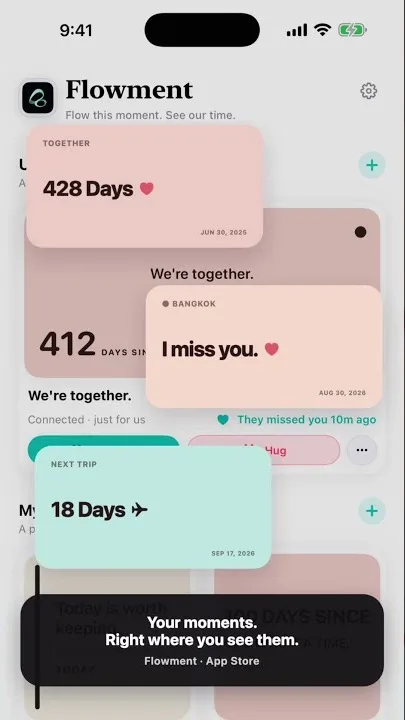
Adding a Flowment widget to your iPhone Home Screen takes only a minute. Create and save a card in Flowment, open the Home Screen editor, choose Flowment from the widget gallery, and select the card you want to keep visible.
Watch the short video: How to Add a Widget to iPhone Home Screen
Create a card before adding the widget
Open Flowment and make the card you want to see during the day. It can contain a countdown for a trip, a count-up from a meaningful date, or a short custom message. Choose a style, save the card, and then return to the iPhone Home Screen.
Saving a card first makes it available when you configure the widget.
Add Flowment to your iPhone Home Screen
- Touch and hold an empty area of the Home Screen until the app icons begin to jiggle.
- Tap Edit, then tap Add Widget.
- Search for Flowment in the widget gallery.
- Choose the widget size and tap Add Widget.
- Drag the widget to the position you want, then tap Done.
The widget now has a place on your Home Screen, but it may still need to be connected to a specific card.
Choose which Flowment card appears
Touch and hold the Flowment widget, then choose Edit Widget. Select the card you created and close the editor. The selected card will now show its text, date, or running number on the Home Screen.
If you use more than one Flowment card, you can add more widgets or edit each widget separately. Keeping one clear purpose per widget makes the Home Screen easier to scan.
For two different dates side by side, follow How to Add Multiple Countdown Widgets on iPhone. It explains which card to select for each widget and what to check if both show the same countdown.
For a date that repeats each month, follow the payday countdown and monthly repeat guide. It covers saving the rule, selecting the card and what happens after the date arrives.
Pick a widget size that fits the card
A Small widget works well for one short line or a simple number. Choose Medium when you want a label and a date to have more breathing room, such as “Next trip” with a countdown.
The best size is the one that lets you understand the card without opening the app. You can always touch and hold the widget, choose Remove Widget, and add it again in another size.
If Flowment is missing from the widget gallery
Open Flowment once and save at least one card, then return to the widget gallery and search again. If Flowment is already on the Home Screen but shows the wrong card, use Edit Widget to select the intended card.
For a dedicated text setup, read How to Add a Custom Text Widget to Your iPhone Home Screen. For a future date, see How to add a countdown widget to your iPhone Home Screen.
Keep the moment in sight