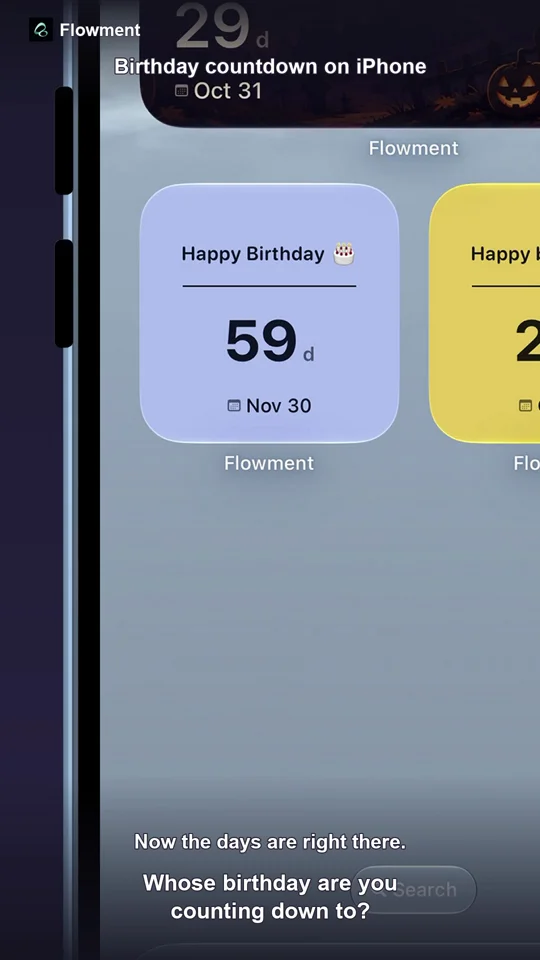
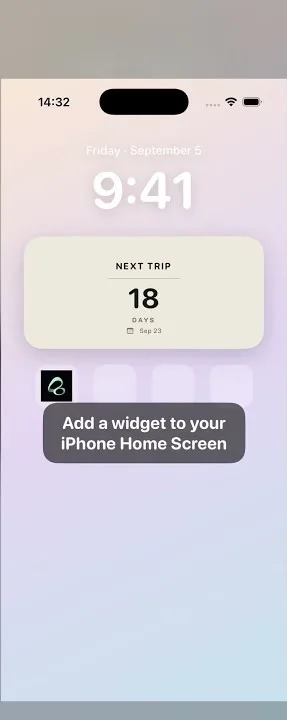
To put a Halloween countdown on your iPhone Home Screen, make a Flowment card for October 31, choose the Halloween Moonlight theme, then add the card as a widget. The number of days left stays in view each time you look at your Home Screen.
Watch the short video: Halloween Countdown Widget for iPhone
Set up the Halloween countdown
- Open Flowment and create a personal countdown card.
- Set its target date to the upcoming October 31. If this year’s Halloween has passed, choose October 31 next year.
- Give the card a short title, such as Halloween.
- Choose the Halloween Moonlight theme and save the card.
- On your iPhone Home Screen, touch and hold an empty area, tap Add Widget, find Flowment, and select the card you just made.
You can use the Halloween theme with a single countdown card; no second card or shared setup is needed.
See the finished Home Screen
The video shows the real Flowment setup and the finished Home Screen widget. It was recorded on September 29, when the card displayed 32 days until October 31. That number is an example from the recording, not today’s countdown.
For a clean layout, keep the title short and give the countdown enough space to read at a glance. If the wrong card appears after adding the widget, edit the widget and select your Halloween card.
Want a countdown for a birthday or trip after Halloween? The same steps work with another date and theme. See the general iPhone countdown widget guide for more examples, or the widget setup guide if you need help placing it.
Keep the moment in sight