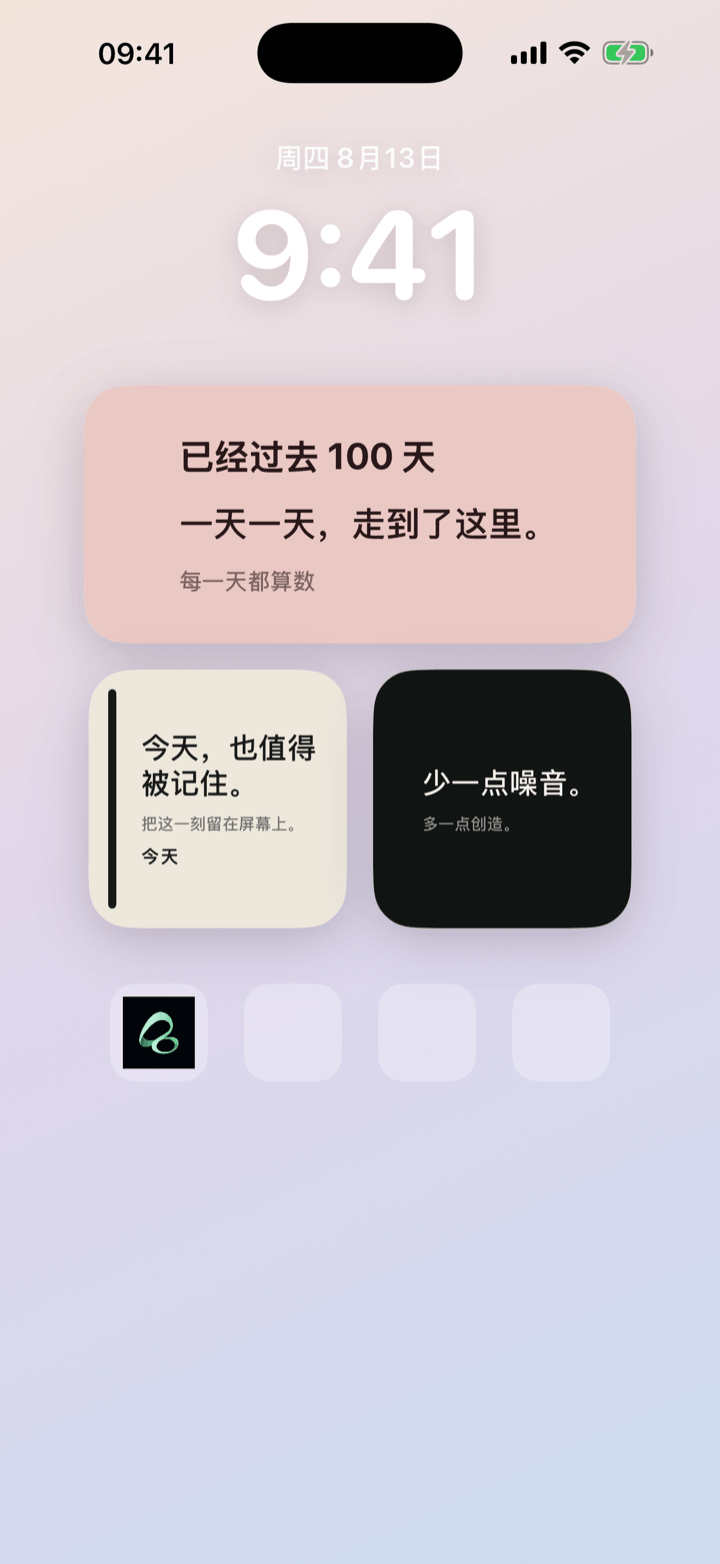
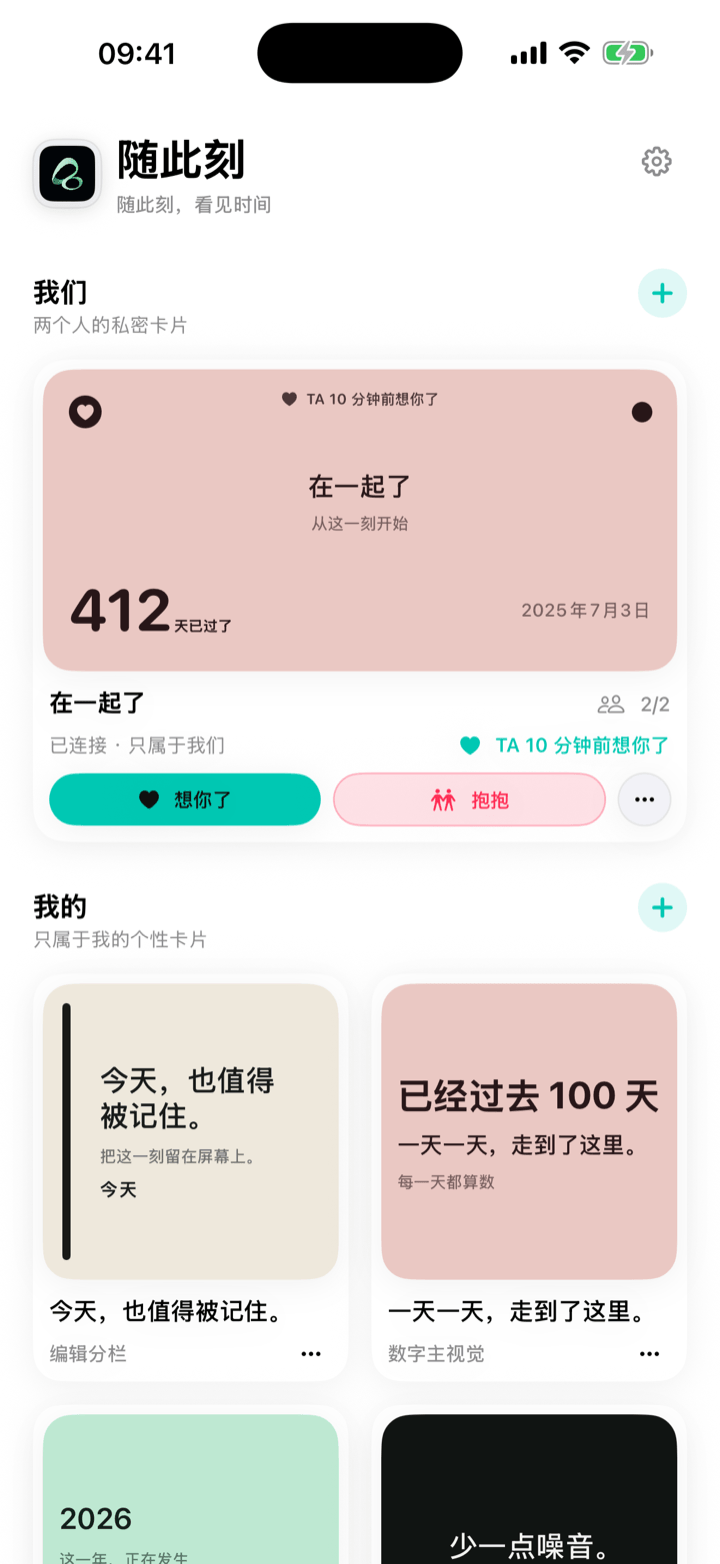
Want custom text on your iPhone Home Screen? Create a card in Flowment, type the line you want to keep visible, choose a style, then add Flowment from the iPhone widget gallery.
Watch the short video: How to Add a Custom Text Widget on iPhone Home Screen
1. Create the text you want to keep visible
Open Flowment and create a personal card. Add a short title or subtitle such as “Today is worth keeping.”
You can keep the card text-only, or add a count-up or countdown when a date is part of the idea.
2. Choose a simple style
Pick the layout, palette, font, and alignment that make the line easy to read. Home Screen text works best when one idea stays visually dominant.
A Small widget is useful for one short line. A Medium widget gives text and a date more room when you want both.
3. Add Flowment from the iPhone widget gallery
- Return to the iPhone Home Screen.
- Touch and hold the background until the apps begin to jiggle.
- Tap Edit, then Add Widget.
- Search for Flowment.
- Choose a size and tap Add Widget.
- Move it where you want it on the Home Screen.
To display a specific Flowment card, touch and hold the widget, choose Edit Widget, then select the card you created.
What can you put in a custom text widget?
Keep it short enough to understand without opening another app:
- “Take it slow.”
- “Today is worth keeping.”
- “28 days until we leave.”
- “See you in 12 days.”
The point is not to fill the widget. It is to keep one useful or meaningful thing in sight.
If Flowment does not appear in the widget list
Open Flowment once and save at least one card, then return to the Home Screen and try adding the widget again.
If you already have a Flowment widget but it shows the wrong content, long-press it and use Edit Widget to check which card is selected.
Does the widget update immediately?
Not always. iOS controls widget refresh timing, so a saved edit may take a little time to appear. Opening Flowment after saving can help the system pick up the latest card.
For the broader setup and ideas behind text widgets, see How to put a text widget on your iPhone Home Screen.
Want a collection of your own sentences instead of one fixed line? Follow the daily quote widget guide for theme import, daily rotation, and manual switching.
Keep the moment in sight