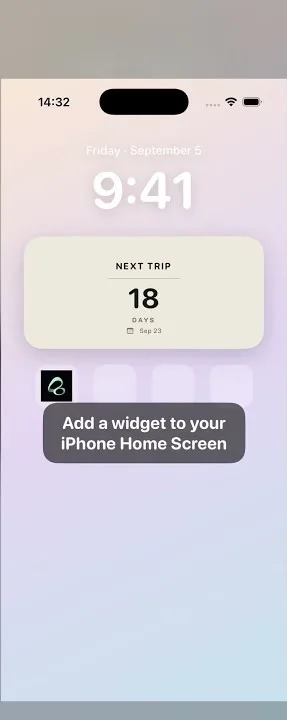
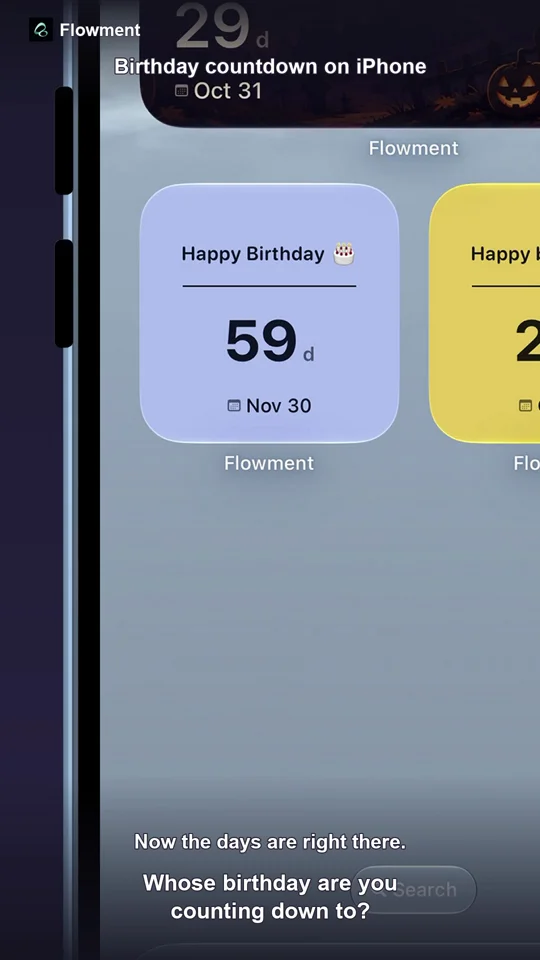
To keep a vacation countdown on your iPhone Home Screen, create a countdown card in Flowment, choose your departure date, and select that card for a Flowment widget. Give it a destination or trip name so the number means something at a glance.
Watch: Vacation Countdown Widget for iPhone
Choose the date your trip starts
Decide what you want to count down to: leaving home, your flight’s departure, or the first day of your holiday. Use one of these consistently. An overnight flight can arrive on a different calendar date, so check the date on your booking rather than assuming departure and arrival are the same day.
This is a countdown to a date you choose, not a live flight-status display. Keep your airline’s itinerary for departure times, delays and gate information.
Set up the travel card
- Open Flowment and create a personal countdown card, or edit an existing one.
- Set the target date to the day you want your countdown to reach.
- Use a short label such as “Korea trip”, “Beach weekend” or “Home for the holidays”. Choose a layout that keeps the remaining days easy to read.
- Save the card.
- Add a Flowment widget to your iPhone Home Screen and select the travel card. If you already have a widget, edit it and select the card instead of adding another.
For the Home Screen steps, see how to add a widget to iPhone.
A trip countdown you can read at a glance
The example uses October 17, 2026 as the target date. On October 5, 2026, the widget shows 12 days. That is a dated example, not the number of days remaining today.
Use the destination as the main label when you have one upcoming trip. If you have several, give each card a distinct name and check which one the widget is displaying. A countdown is most useful when you can tell both where you are going and how long you have to wait.
If your travel plans change
Edit the target date in Flowment and save it. Then check the saved card and the Home Screen widget. If they disagree, confirm that the widget is pointing to the same card; do not assume that returning to the Home Screen proves it has refreshed.
If the number seems wrong, check the month, day and year, and whether you selected departure or arrival. The countdown is not a substitute for checking your booking.
Calculate first, keep it on your Home Screen later
If you only need to work out the days before booking, use the Days Until Calculator. Once the date is settled, keep it visible in Flowment. For another occasion, see the birthday countdown guide.
Keep the moment in sight