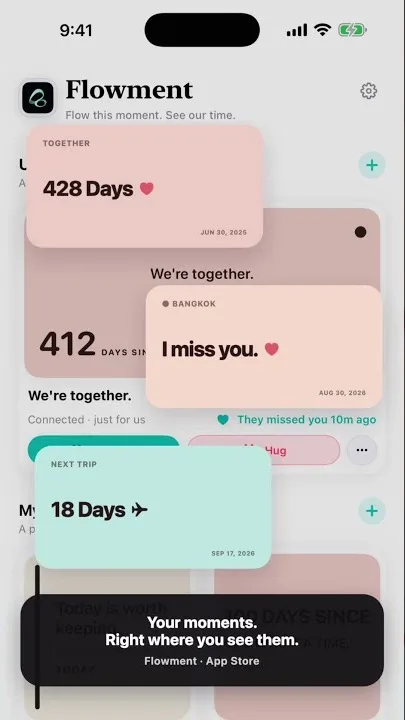
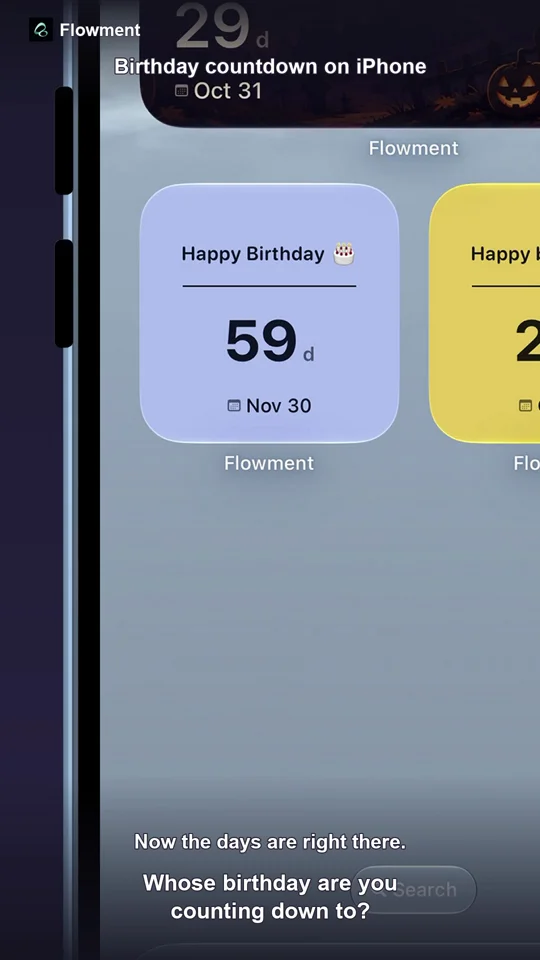
Want to know how many days have passed since a meaningful date? Flowment turns any start date into a count-up card, then keeps the running total visible on your iPhone Home Screen. It updates automatically, so you can notice progress without opening a calendar.
Watch the short video: How to Show Days Since a Date on iPhone Home Screen
What a days-since-date widget does
A count-up widget answers one simple question: how long has it been since this date? The date might mark the start of a running habit, a new project, a move, a trip, a friendship, or any other moment you want to keep in view.
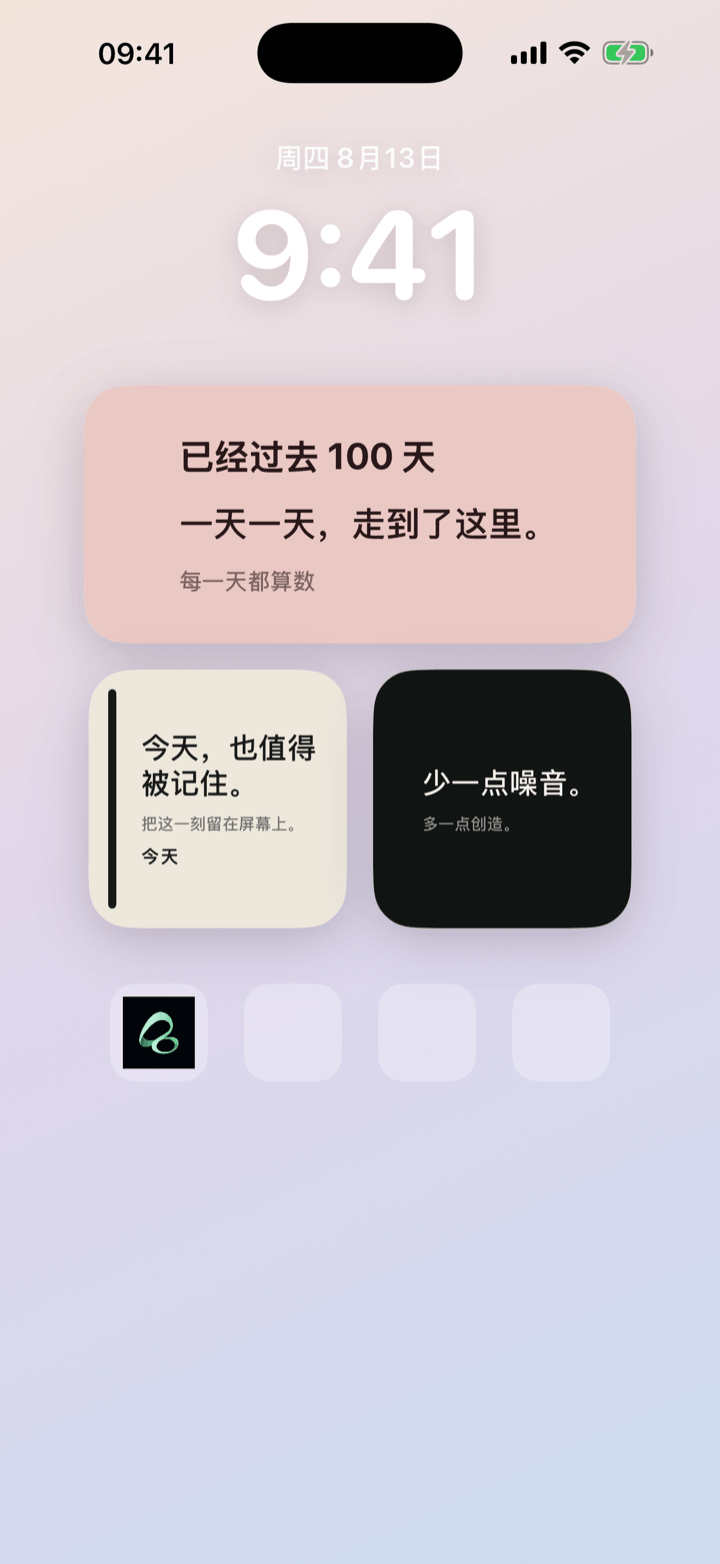
Instead of calculating the elapsed time yourself, Flowment displays the current number on a card such as 100 days. The number keeps counting while the card stays on your Home Screen.
Create a count-up widget on iPhone
- Open Flowment and create a personal card.
- Choose count-up for the time direction.
- Select the date you want to count from.
- Add a short label, such as “Since I started running” or “New chapter”.
- Save the card.
- On your iPhone Home Screen, touch and hold an empty area, tap Add Widget, choose Flowment, and select the card.
The result is a live date counter that is easy to read each time you unlock your iPhone.
Pick a date that gives the number meaning
The best start date is specific enough to tell a story. It could be your first day of a daily habit, the day you began a course, the date you adopted a pet, or the beginning of a shared memory.
You can create separate cards for separate milestones. One clear purpose per card keeps the number legible and makes it easier to choose the right style and widget size.
Why keep an elapsed-day counter on your Home Screen?
A calendar is useful when you need to find a date. A Home Screen widget is useful when you want to see progress naturally throughout the day. The count-up card turns an invisible passage of time into a small, reassuring visual cue.
Use a count-up for time that has already passed. If you are waiting for a future date, use a countdown instead—see How to add a countdown widget to your iPhone Home Screen. For a more personal layout, you can also combine the number with a short message using iPhone text widgets in Flowment.
Keep the moment in sight