For a Halloween iPhone Home Screen that still works every day, make one countdown widget the seasonal centerpiece. Pair it with a quiet wallpaper, leave your useful widgets in place, and let the pumpkins and the days until October 31 do the decorating.
The candy might not last that long. “Just checking the quality” is a very convenient excuse when half the bag has disappeared.
Watch: Where did the Halloween candy go?
Start with one Halloween widget
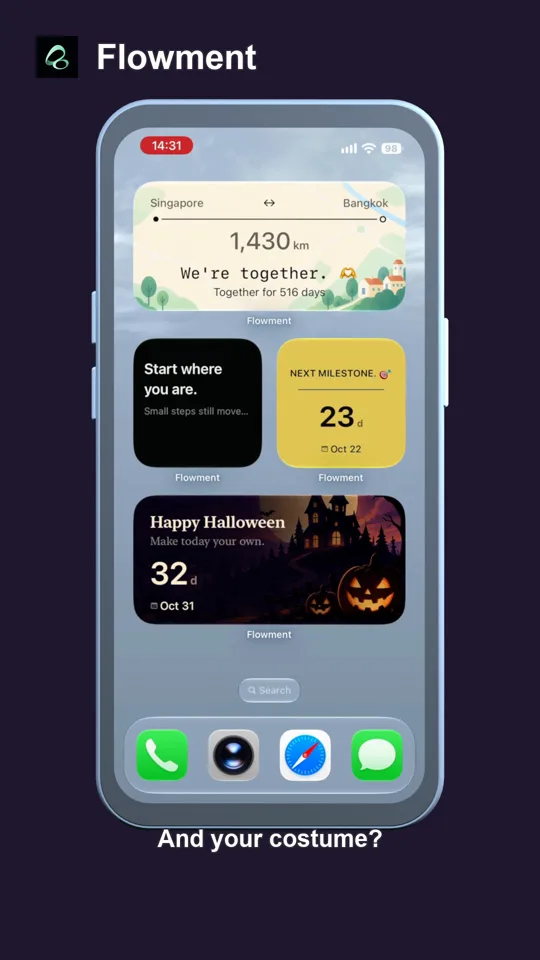
A seasonal screen does not need a replacement for every icon. Flowment’s Halloween countdown combines a date with illustrated pumpkins, a moon and a dark castle. It can be the one part of your screen that changes for October.
Keep the title short: Happy Halloween or simply Halloween. The date and the remaining days should be easy to find before you notice the decorative details. If you have to study the screen to read the number, give the widget more space or simplify the surrounding layout.
The saved example here reads Happy Halloween · 15d · Oct 31. It was captured on October 16, 2026; the screenshot and video are not a live countdown for the day you read this article.
Three ways to arrange the screen
A spooky centerpiece, everyday cards around it
Keep the Halloween widget between the cards you already use. In the example, a pale everyday activity widget sits above it and a simple payday countdown sits below. Their quieter colors leave the dark Halloween artwork as the focal point without turning the entire screen into a poster.
Use that arrangement as a layout idea, not a checklist of apps to install. A calendar, a weather widget or your usual shortcuts can fill the same supporting role.
One festive card on a quiet background
For a less busy screen, keep just the Halloween card and your essential app icons on that page. A plain or softly textured wallpaper gives the illustrated card room to stand out. Try a muted gray-blue background for contrast with the orange pumpkins, or a subdued dark background for a softer transition around the card.
Set the wallpaper through iPhone’s own controls; the Flowment theme styles the card, not the entire phone. There is no need to replace your app icons to use the countdown.
A separate page for the season
If you prefer to leave your main page alone, put the Halloween widget on a secondary Home Screen page. Keep that page simple enough that one glance answers “How many days left?” When October ends, remove the seasonal widget or choose another saved date card for its place.
October 31 or the night of your party?
Choose the date that matches the label. Halloween should count down to the upcoming October 31. A party held on October 30 should use that date and a label such as Halloween party, so the number does not look a day early.
Check the year when saving the date. After October 31 has passed, a countdown to the next Halloween needs the following year’s date. For this simple setup, check or edit the saved target rather than assuming an annual repeat has been enabled.
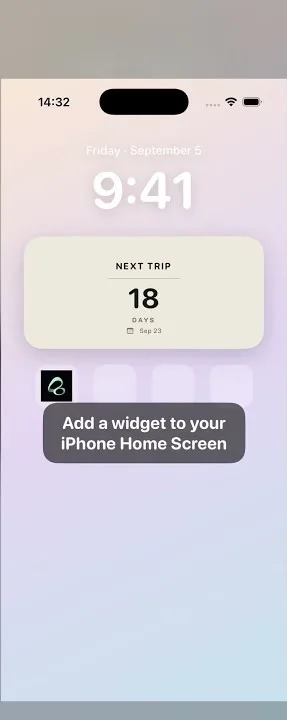
To make the card, create a personal countdown in Flowment, set the date, choose the Halloween theme and save it. Then add a Flowment Home Screen widget and select that saved card. The Halloween countdown setup guide has the installation steps; this layout does not need a shared card or a second phone.
Check it at a glance
Before calling the screen finished, check three things:
- Can you read the number without opening the app? Let the countdown stand out from the artwork and wallpaper.
- Does the label match the date? A party and Halloween itself may be different events.
- Is the widget showing the card you saved? If another event appears, edit the widget’s selected card. See the widget setup guide if needed.
A countdown is a visible date, not a candy stock tracker or an automatic shopping reminder. You still have to hide the next bag yourself.
Start with one festive card. Keep the rest of your phone familiar—and see whether the candy makes it to October 31.
Keep the moment in sight