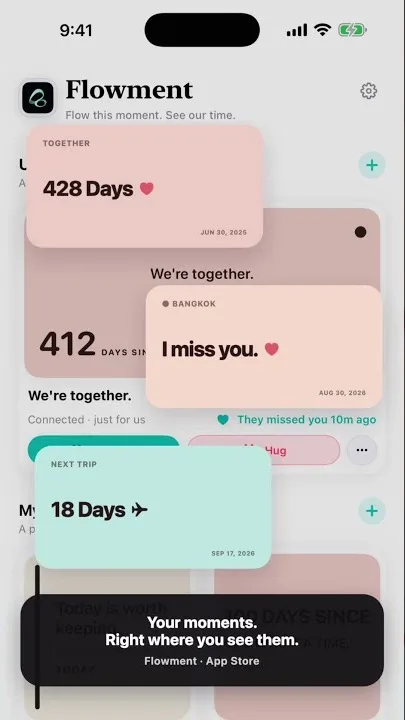
Give your iPhone Home Screen a different mood as the weather changes. Flowment’s Weather Moods theme uses weather conditions to choose the card’s colors: warm tones for clear skies, soft blues for rain, and a deep palette for a clear night.
Watch Weather Moods in the short video
The video shows the theme’s Clear, Rain, and Night previews using sample weather. Tapping those preview buttons demonstrates the design; it does not change the real weather or prove an instant Home Screen update.
What changes with the weather?
Weather Moods changes the card’s background and foreground palette, rather than asking you to manually switch wallpapers. Your saved text or date remains part of the card. It is a way to bring weather into your desktop style, not a replacement for a detailed forecast.
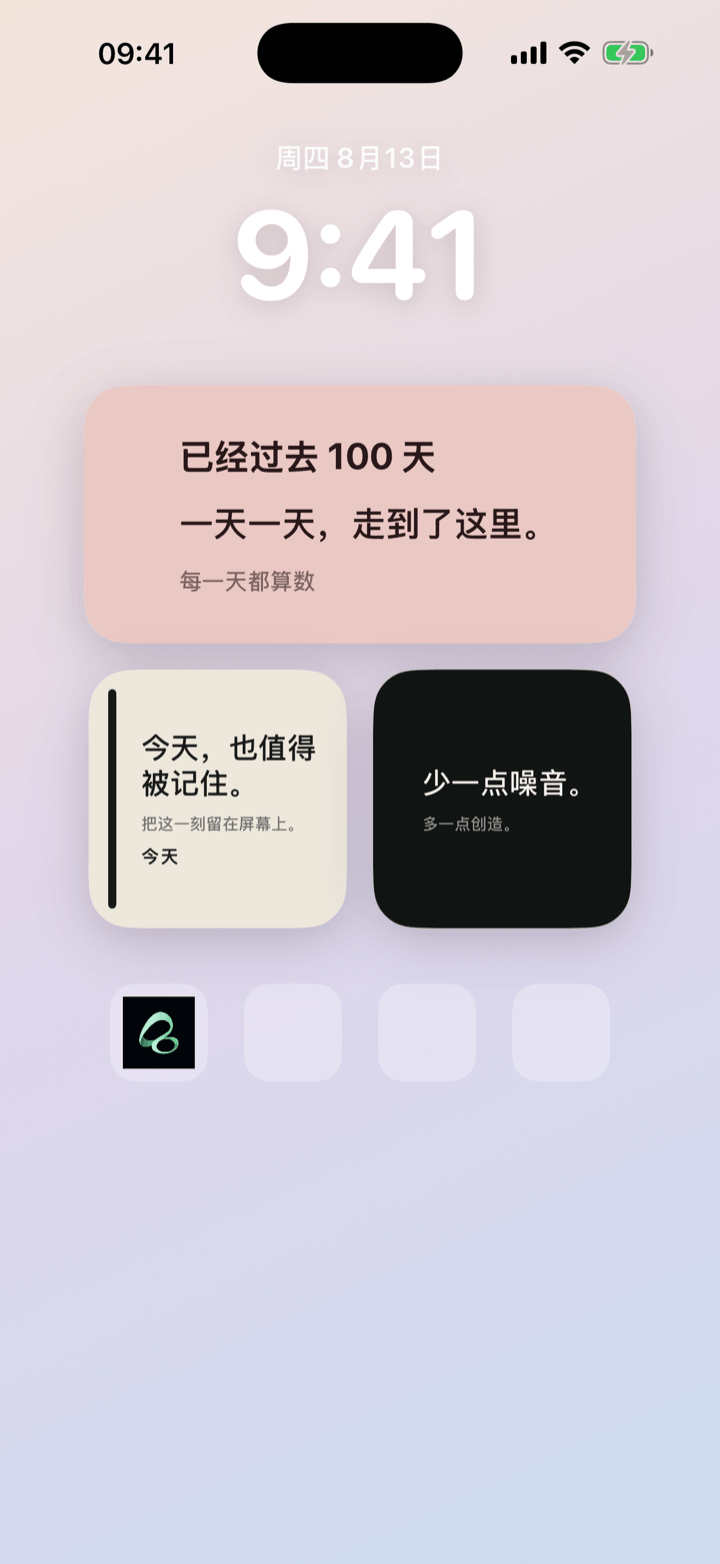
Choose a short line such as “Today is worth keeping,” or use a date card for something you are looking forward to. Keep the message short enough to read beside the weather information.
Get the theme and apply it to a card
- Use Flowment 1.2.2 or later.
- Open the Weather Moods theme page and follow its current acquisition and import instructions to add the theme to your library.
- Open Weather Moods in Flowment. Preview Small or Medium and compare Clear, Rain, and Night.
- Create a new card with the theme, or apply it to a compatible existing card.
- Edit the card’s text or date as needed, keep its Weather element visible, and save.
The published theme uses an import flow. Do not assume it is already bundled in the app or included with a particular purchase; check the theme page for current availability.
Add the weather-themed widget to your Home Screen
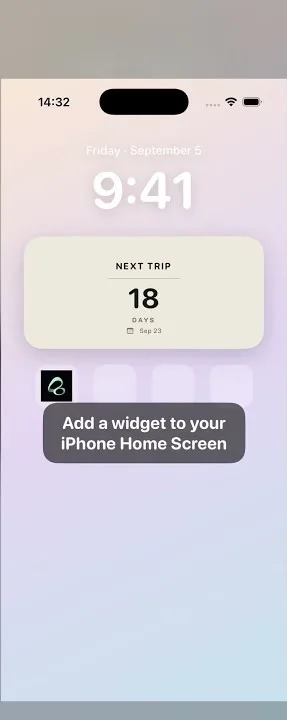
Touch and hold an empty area of your Home Screen, open the widget gallery, and search for Flowment. Add a Small or Medium widget. Then touch and hold that widget, choose Edit Widget, and select the card you just saved.
Saving a theme card and selecting it for the Home Screen widget are separate steps. If you already have a Flowment widget, check its selected card rather than adding a duplicate. For the complete installation steps, read how to add a widget to your iPhone Home Screen.
For weather-driven colors, the card needs usable weather data and a visible Weather element. Follow Flowment’s location-permission prompt when using location-based weather. A preview can show sample rain even when your current location is sunny.
Why has the widget not changed color?
- It shows another design: check that the saved card uses Weather Moods and that Edit Widget points to that card.
- It uses the neutral palette: check weather availability and location permission. Missing, stale, unknown, or unsupported weather can fall back to the default colors.
- The weather section is hidden: keep the Weather element visible. Hiding it returns the card to its default palette.
- Night colors do not follow dark mode: the clear-night palette follows the weather snapshot’s day/night state, not the iPhone’s appearance setting.
- An update is delayed: iOS manages widget refresh timing. A weather change or an edit is not guaranteed to appear immediately.
This setup targets Small and Medium widgets; do not assume the same weather behavior on Large or shared-card layouts.
A little weather, without rebuilding your Home Screen
Start with one card and one readable message. The point is a change of atmosphere when you glance at your phone, not another crowded weather dashboard.
Explore custom text widgets for message ideas, or iPhone Home Screen cards to pair your weather theme with a useful date.
Keep the moment in sight