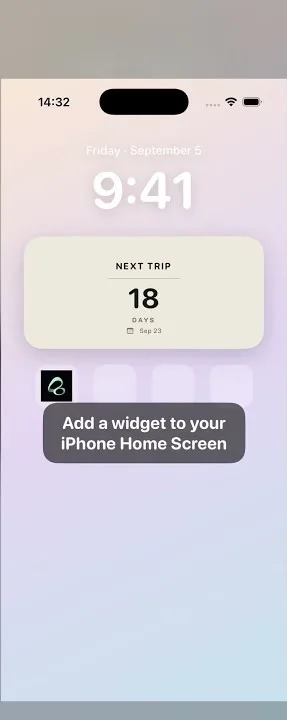
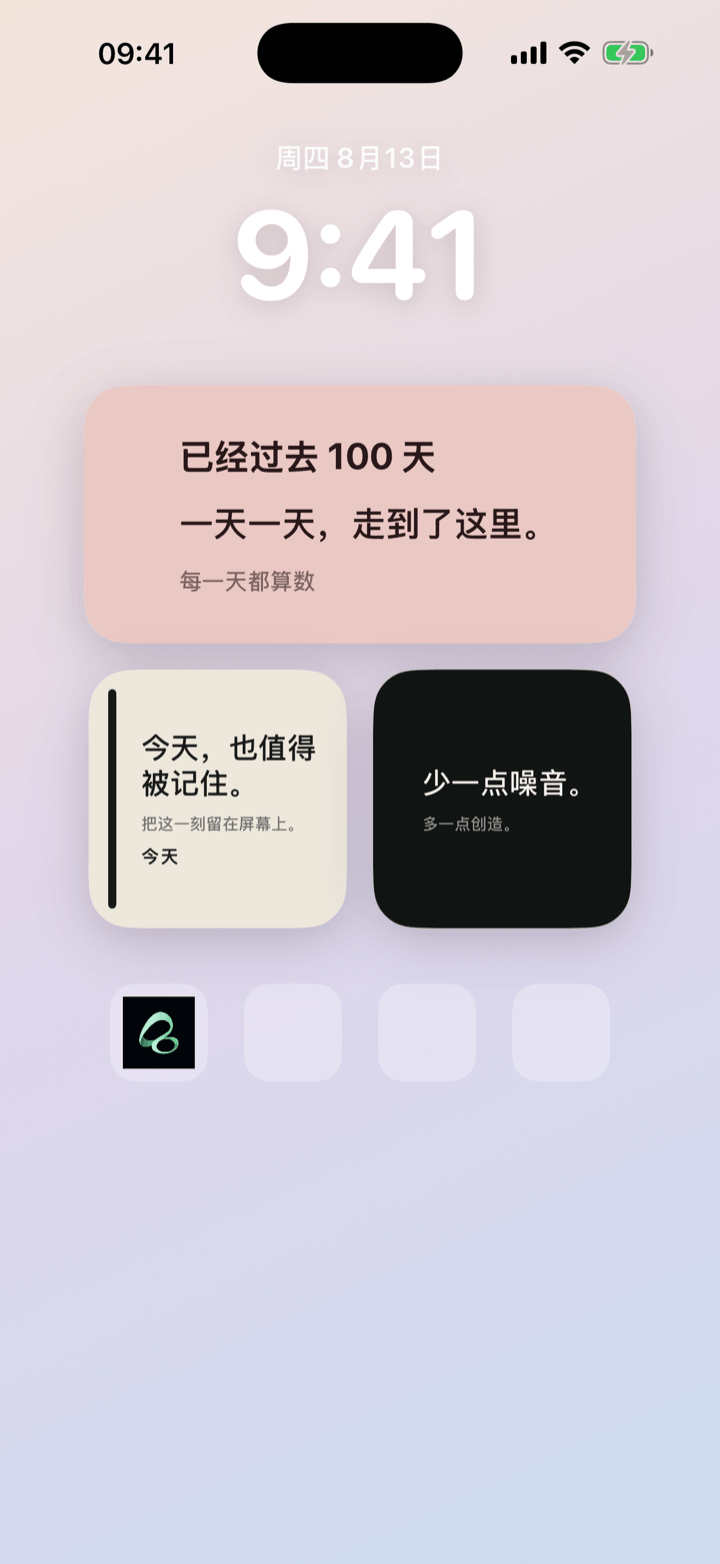
Shared iPhone widgets give couples a place for one small update: a sentence on a shared card, visible on both Home Screens. With Flowment, leave today’s mood in your own words, and your partner can tap Hug on a supported shared widget to send a small response.
“A little tired today.” That may be all you want to say between work and dinner. A shared text widget keeps the sentence somewhere your partner can notice without asking them to start a conversation immediately.
Watch: a shared mood note and a Home Screen Hug
What to put on a couple widget
Start with a line that makes sense on its own. A glance at the Home Screen should be enough to understand it.
- A little tired today. A gentle way to say you could use some care.
- Big day tomorrow. A reminder of something you might want to ask about later.
- Thinking of you. A short love message that needs no explanation.
- Made it home. A manually written update, rather than an automatic location status.
Flowment does not detect your mood for you. You choose the words and save them to the shared card. In a long-distance relationship, that leaves room for a small update even when there is no new meeting date to count down to.
For a next visit or relationship date, start with the long-distance relationship widget guide. This setup focuses on the sentence you want to share today.
Set up the same shared card on both iPhones
- In Flowment’s shared area, create a shared card and invite your partner. Have them join that shared space.
- Edit the card’s main text. Keep the daily note short, save it, and check that the other person can see the saved words in Flowment.
- Add a Flowment widget to each iPhone Home Screen. Edit each widget and select the card belonging to that shared space.
- Choose a size and theme that display the note clearly. To send a Hug directly from the Home Screen, use a layout that includes the Hug action; the medium widget here shows it beside Miss you.
Selecting a personal card, or a different shared space, will show different content. The Home Screen widget setup guide covers adding the widget and selecting its card.
You are sharing the card’s content. Each person can arrange their own Home Screen; you do not need matching wallpaper or app icons.
Send a Hug from the Home Screen
When your partner’s note appears on your shared widget, tap its Hug action. The shared card can show the received gesture on the other person’s widget. In the example, the note remains A little tired today., with They hugged you just now above it.
A Hug can mean “I saw this and I’m thinking of you.” Agree on that meaning together, especially if you work different hours. Neither the note nor the gesture needs to become a request for an immediate reply.
The example also shows Together for 100 days. That is the demonstration card’s saved date context, not a requirement for sharing a mood note or a live count for the day you read this guide.
If the words or Hug have not appeared yet
iPhone widgets refresh on iOS’s schedule and depend on a network connection. Sending a gesture does not guarantee that the other Home Screen changes immediately.
First check that both widgets point to the same shared space. Then open Flowment on the receiving phone and check whether the saved note or gesture is visible there before returning to the Home Screen. If the app has the new content but the widget still looks old, allow time for its next refresh.
For something that needs a timely answer, use your usual messaging or calling app. A shared widget works best for the small updates you can notice when you next look at your phone.
Choose words you are comfortable leaving visible
Someone nearby may glance at your Home Screen. Keep sensitive details in a private conversation. Choose a note you are both comfortable displaying, and agree on whether either person should update it during a busy day.
For a sentence on your own phone, a personal text widget is enough. For a shared daily ritual, start with one sentence and one small response: what would you leave on your partner’s Home Screen today?
Keep the moment in sight