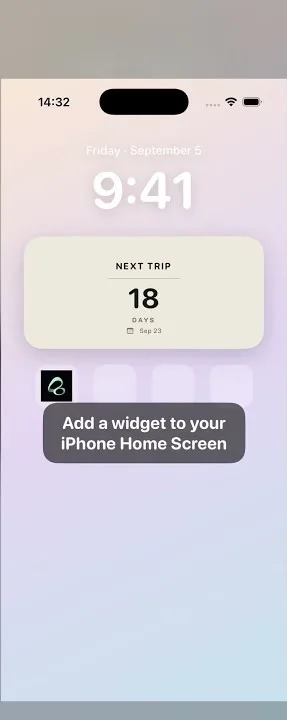
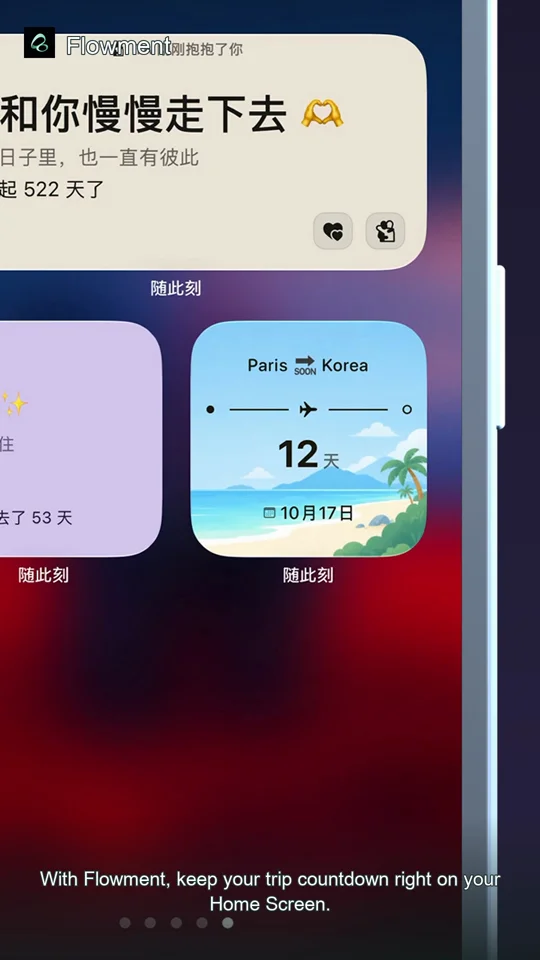
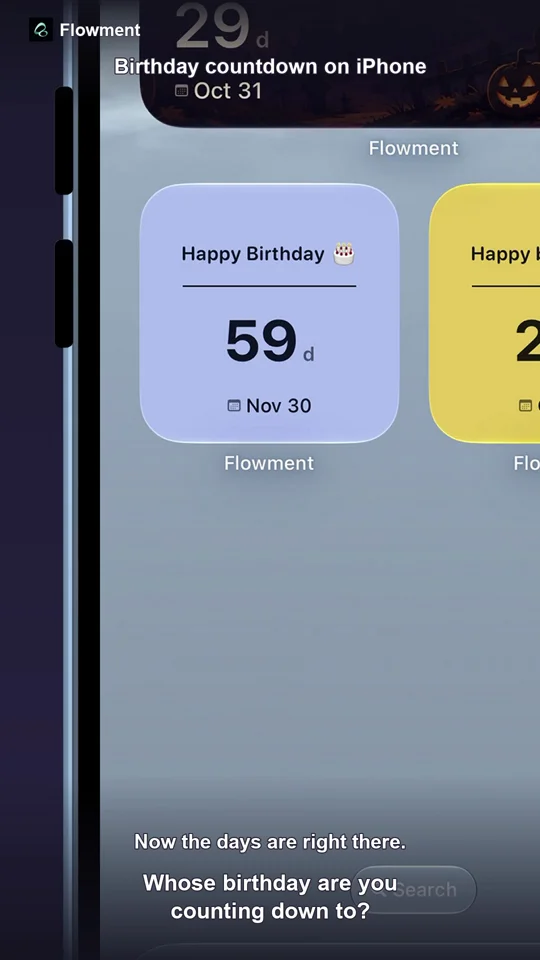
To show multiple different countdowns on your iPhone Home Screen, save a separate date card for each event in Flowment, add a widget for each card, then edit each widget to choose its card. Adding two widgets is not enough if both are connected to the same saved card.
The video uses two dates: going home and taking a break. The same setup works when you want two important dates visible at once, without opening the app to switch between them.
Watch the 34-second tutorial: set up two different countdown widgets
Cards hold the dates; widgets display the cards
A card is the content you save inside Flowment: a title, a date and its appearance. A widget is a place on your Home Screen that displays a selected card.
Two widgets can display the same card, or each can display a different one. Changing a widget’s position or color does not select a new date. For separate countdowns, check the Card selection inside each widget’s configuration.
1. Save two cards with different dates
In Flowment, create a personal date card for the first event. Give it a recognizable title such as Home, choose the future date you want to count down to, select a countdown-capable theme, and save.
Create a second card for Break, with its own date, and save that too. Check that both cards appear in the app before configuring the widgets. Clear titles make it easier to select the right one later.
The recording made on October 20, 2026 uses this example:
| Saved card | Target date | Countdown in the recording |
|---|---|---|
| Home | October 31, 2026 | 11 days |
| Break | October 25, 2026 | 5 days |
These are recorded example values, not live countdowns for today. Use your own future dates. For help choosing a trip date, see the vacation countdown guide.
2. Add two Flowment widgets to the Home Screen
Touch and hold an empty part of the Home Screen, open Edit → Add Widget, and find Flowment. Choose a size, add the widget, then repeat for the second one. Finish editing the Home Screen when both are in place.
If you already have two Flowment widgets, skip this step. You do not need to remove them or recreate your cards.
Two Small widgets work for the side-by-side arrangement in the video. Leave them in separate positions if you want both countdowns visible at once; a widget stack shows one of its widgets at a time. Apple’s widget guide explains adding, moving and stacking widgets. For the Flowment installation steps, use our Home Screen setup guide.
3. Select a different card for each widget
- Press and hold the first Flowment widget.
- Choose Edit Widget, open the card selector and select Home.
- Close the editor and check that the first widget shows Home.
- Press and hold the second Flowment widget and open its editor.
- Select Break, then return to the Home Screen.
Check the two titles as well as the numbers. Each widget should now refer to the intended card. The video uses English card names with some system menus in Chinese; the matching action is Edit Widget / 编辑小组件.
Why do both countdown widgets show the same date?
Start with the widget configuration, not the theme:
- Both show Home: open the second widget’s editor and choose Break. Adding another widget does not mean it has selected the other card.
- Titles differ but the numbers match: check the dates saved in the two cards. Different events can fall on the same day; matching numbers alone do not prove a setup problem.
- The second card is missing from the selector: open Flowment and confirm that the card was saved and still exists, then reopen the widget editor.
- Changing one card changes both widgets: check whether both widgets selected that card. Keep separate saved cards when you want independently editable dates.
- The app is correct but the widget looks old: confirm the selected card and allow time for the next widget refresh. iOS schedules widget updates; saving does not guarantee an immediate Home Screen change.
Can I show both countdowns inside one widget?
This tutorial uses two separate widgets, not one combined two-date widget. If your goal is to see both at a glance, keep both widgets visible rather than putting them in a stack.
Start with the two dates you check most often. Save them with distinct names, select each card once, and keep the result somewhere you naturally look during the day.
Keep the moment in sight