To put an anniversary countdown on your iPhone Home Screen, create a personal date card in Flowment, set the next occurrence of your anniversary, save it, and select that card in a Flowment widget. It gives the day you are looking forward to a small, visible place without opening a calendar.
Watch the anniversary countdown Short. The HomeView scene is a visual concept, not an available Flowment feature. The iPhone countdown is available today.
Choose the next anniversary, not the original year
Your wedding date and your next wedding anniversary share a month and day, but they answer different questions. The original date answers “How long have we been married?” A future anniversary date answers “How many days until we celebrate again?”
For a countdown, enter the upcoming anniversary with its full year. If this year’s date has already passed, choose next year’s date. For a count of time already spent together, keep the original date and use a days-together widget instead.
In the example captured on October 15, 2026, the card reads Our anniversary · 30d · Nov 14. Its target is November 14, 2026. Those 30 days belong to the recorded example, not a live countdown on this page.
Create a simple anniversary card
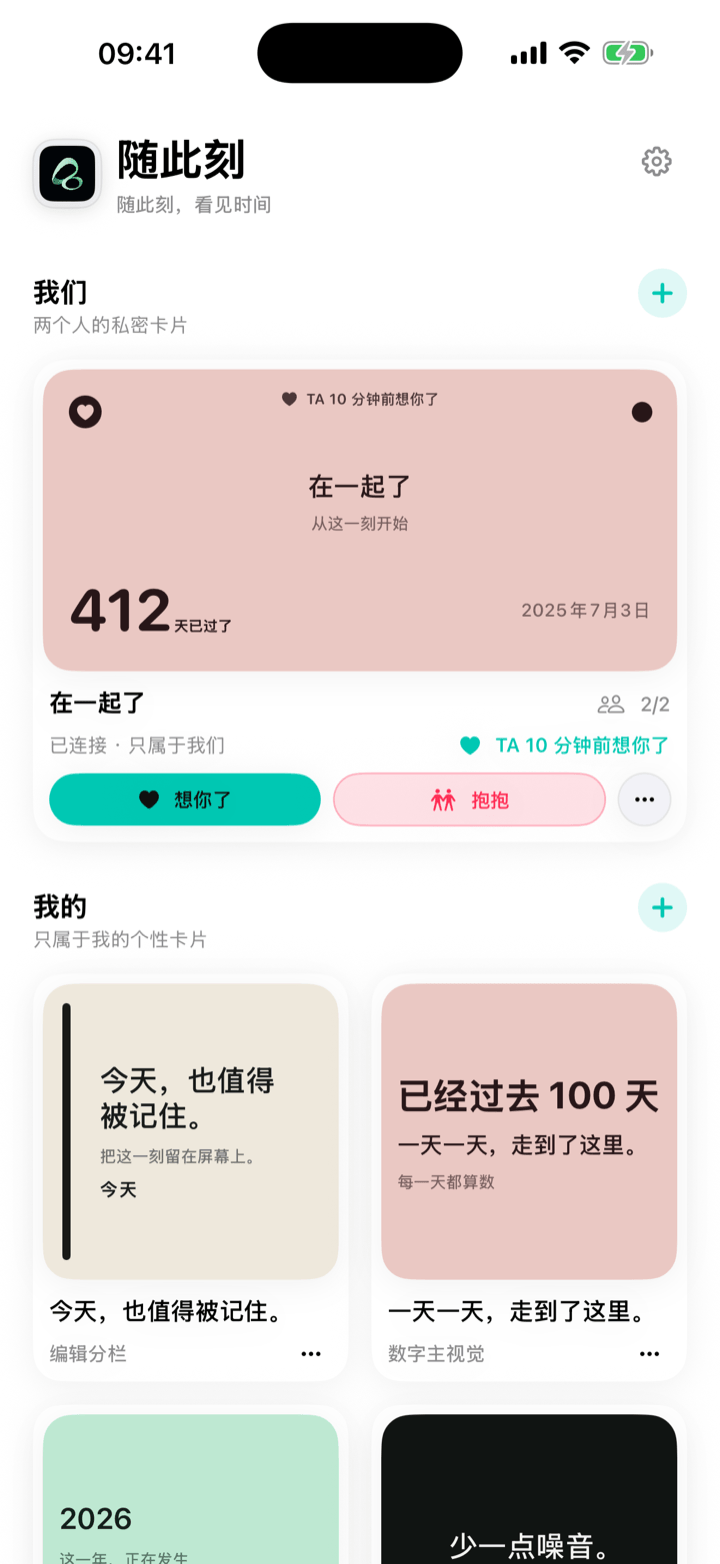
- Open Flowment and create a personal card under My cards.
- Choose a date-based countdown style. Give it a short label such as “Our anniversary”, “Wedding anniversary” or “Another year together”.
- Set the target date to your next anniversary. Check the year as well as the month and day.
- Check the preview, choose a readable style, and save the card.
One date and a short label are enough. You do not need your partner’s name, a photograph or the full story of your relationship on the screen. This setup uses a personal card; it does not invite your partner or synchronize a second phone.
Put the saved card on your Home Screen
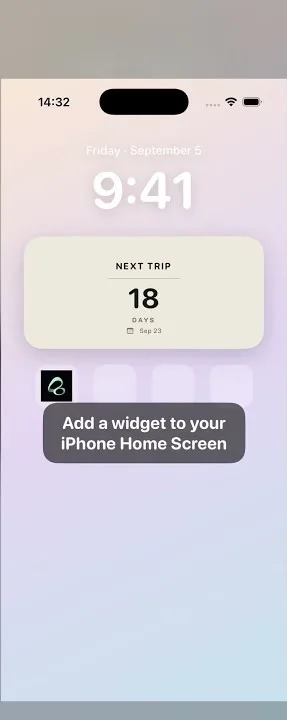
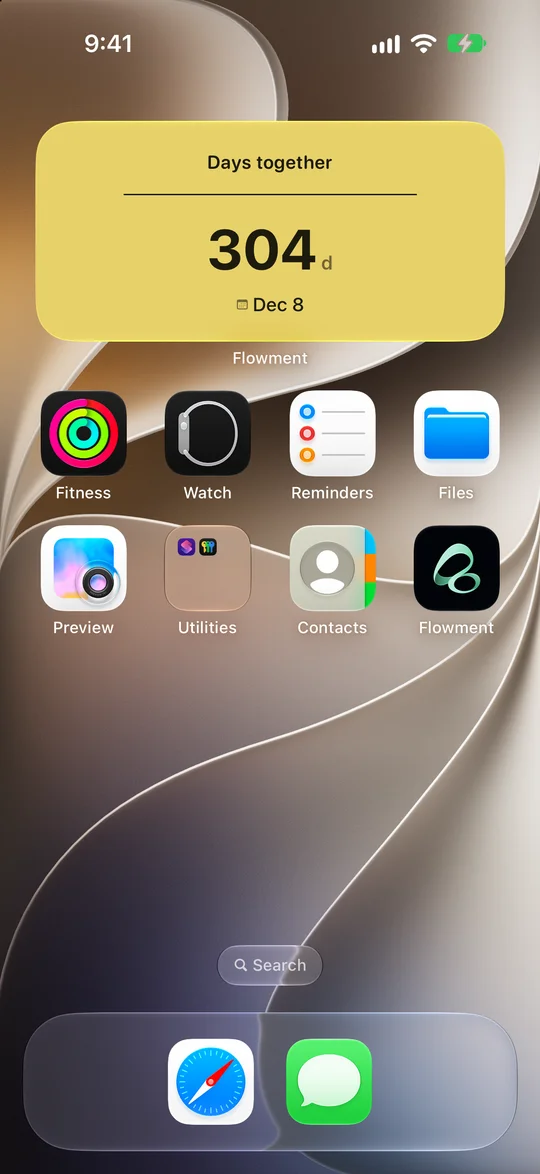
Touch and hold an empty part of the iPhone Home Screen, then choose Edit → Add Widget. Find Flowment, choose a size and add the widget. Touch and hold the widget, choose Edit Widget, and select the anniversary card you saved.
Saving a card in the app and choosing it for the widget are separate steps. If the widget shows another event, change its selected card rather than recreating your anniversary. The Home Screen widget setup guide covers adding and configuring the widget in more detail.
Choose a place you already glance at during the day. A countdown should be easy to read, not another thing to check off.
If the number does not look right
- It shows elapsed time instead of days remaining: check that the target date is in the future. You may have entered the original wedding or relationship year.
- It shows the wrong anniversary: open the widget’s settings and select the intended card, especially if you keep several date cards.
- The app and widget differ after an edit: confirm that you saved the change and selected the same card. iOS manages widget updates; the display is not a promise of second-by-second refresh.
- The anniversary has passed: this example uses a single target date. For another one-off countdown, edit it to the next anniversary and save again; do not assume this setup enables an annual repeat rule.
A date for two does not have to be public
Looking forward to the same day is different from giving everyone in the room access to your card. For a phone that others may see, a neutral label such as “Our anniversary” can be enough. Agree on what belongs on a visible screen before adding private words or photos.
The HomeView idea imagines that shared anticipation in a living space. It is not a Flowment HomeView release, compatibility announcement or promise of a future launch. For now, use the iPhone widget described here. If you want to choose between a personal card and a two-person shared moment, see the couple anniversary widget guide.
Start with the next date you are both looking forward to. A little reminder can be enough.
Keep the moment in sight