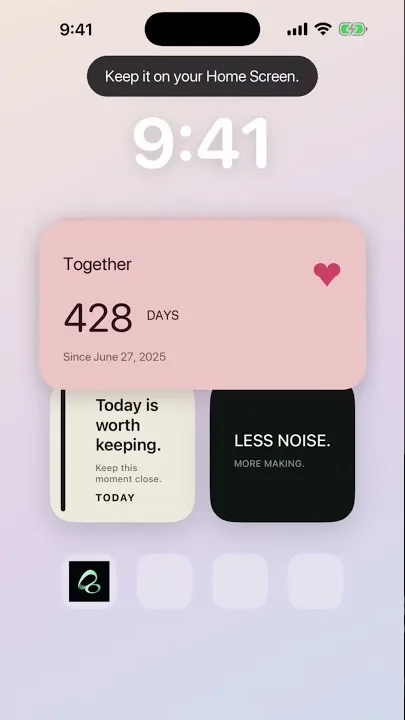
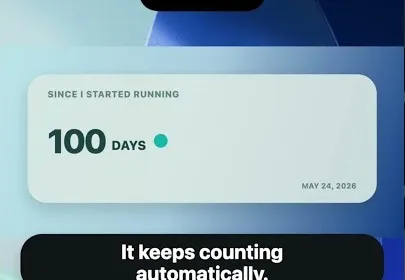
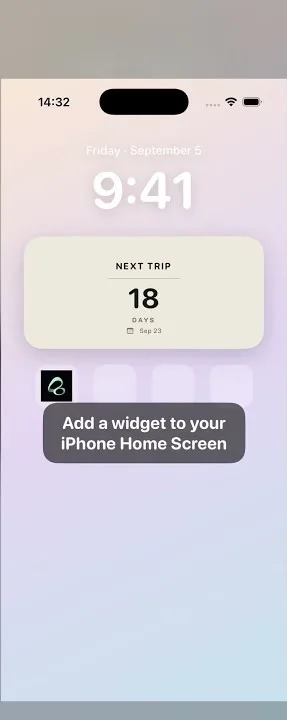
To show your days together on your iPhone Home Screen, create a personal date card in Flowment, choose the date your relationship began, and select that saved card in a Flowment widget. The widget gives you a day counter you can see without opening the app.
Watch: Days Since Widget for iPhone — Track Your Days Together
Choose the date you want to count from
Use a specific past date, including the year. Your first date, the day you became a couple, or your wedding day can each be a useful starting point. Give the card a label that matches the date, such as “Days together” or “Since our first date”.
If you want to check the number before creating the card, enter the date in the Relationship Days Calculator. It shows both elapsed days and the relationship day number; those differ when the starting day is counted as day one.
Create your Days Together card
- Open Flowment and create a personal card, or edit an existing date card.
- Choose a date style that displays elapsed days.
- Enter your relationship start date and check the year.
- Add “Days together” as the card text, or use your own short label.
- Check that the preview shows time since the date, then save the card.
For example, December 8, 2025 to October 8, 2026 is 304 elapsed days. That is the example shown in this guide’s screenshot. Your number will depend on your date and the day you view it.
Add the card to your iPhone Home Screen
- Touch and hold an empty area of your Home Screen to enter editing mode.
- Open the widget gallery and search for Flowment.
- Choose a widget size and add it to your Home Screen.
- Touch and hold the Flowment widget and open Edit Widget.
- In its card selection, choose your saved Days together card.
- Close the settings and check the card label and date on the Home Screen.
If you already have a Flowment widget, edit its card selection to use the new card. For more placement help, see how to add a widget to iPhone.
If the widget shows the wrong number or card
- Wrong date: reopen the card in Flowment, check the full date and year, and save it.
- A different card appears: edit the widget and select Days together again. Saving a card and selecting a widget’s card are separate steps.
- Days remaining instead of days together: check that you chose the past relationship start date and a style that displays elapsed time.
- One-day difference: compare elapsed days with inclusive day numbering. A “day one” total is not the same as full days elapsed.
- A recent edit has not appeared: check the saved card and widget selection. iOS controls widget refresh timing, so an update may not appear immediately.
Does your partner need to install Flowment?
A personal Days Together card can stay on your own phone. Your partner does not need to install the app for this setup. If you later want a shared moment, read the relationship day counter guide for the personal and shared choices.
For other past dates, such as a new job or a habit, follow the days-since-date widget guide. The same idea starts with one date worth keeping in view.
Keep the moment in sight