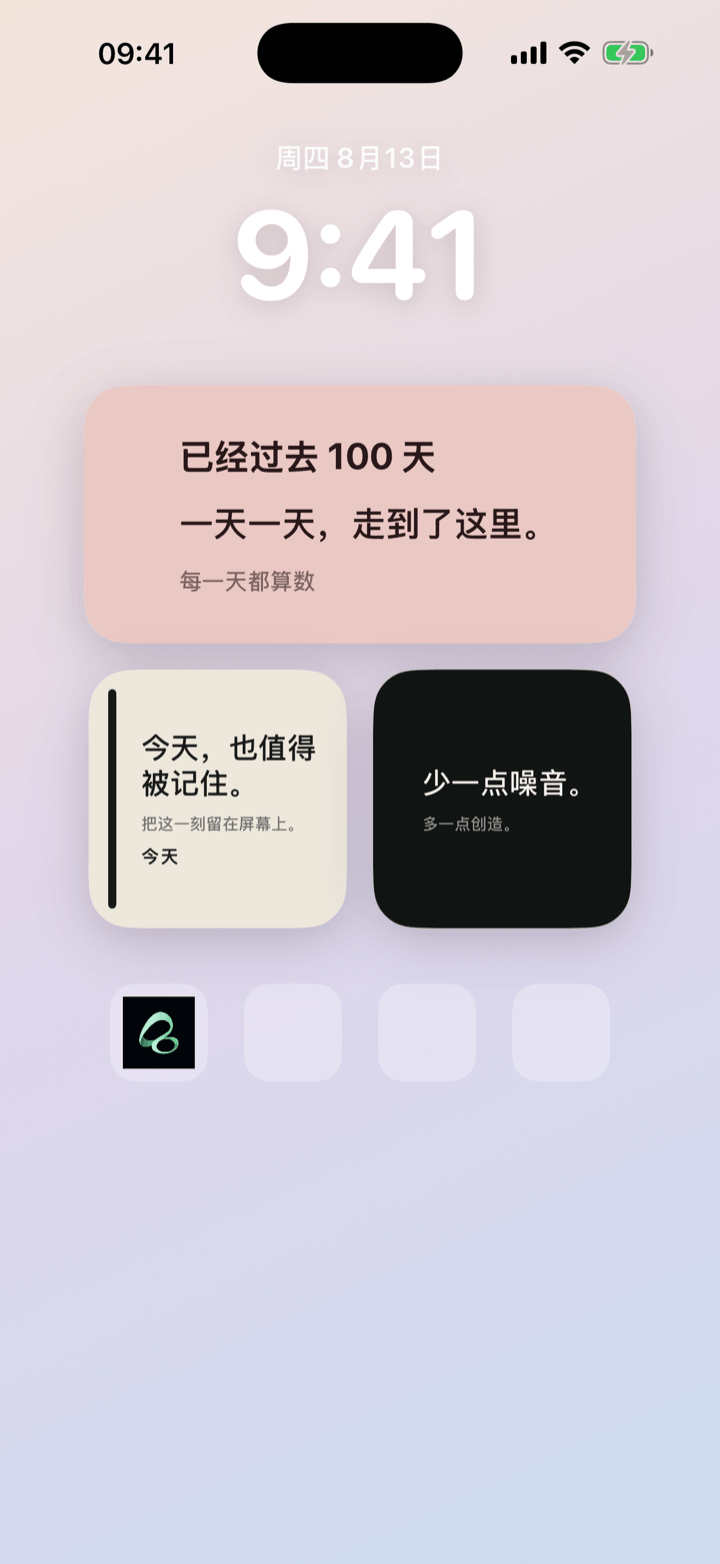
To put your own quotes on your iPhone Home Screen, import Flowment’s Daily Words theme, create a personal text-only card, save a collection of short sentences, and select that card for a Small or Medium widget. Choose Daily for a daily pick, or switch sentences manually.
Watch the daily quote widget setup video
Your sentences rather than a new quote every unlock
A daily quote widget can hold words you actually want to see: a reminder to slow down, a phrase you wrote, or a short line that helps you start the day. Daily Words displays entries from your saved collection. It does not write new quotes for you or choose a different sentence every time you unlock your phone.
The video shows theme import, sentence settings, choosing the widget’s card, and a manual switch on the Home Screen. The neighboring date widgets are separate cards; changing the sentence does not change their dates.
Import Daily Words and create a card
- Use Flowment 1.2.2 or later and open the Daily Words theme page for its current acquisition instructions.
- In the theme preview, tap Import Theme and confirm the import.
- Once the theme is in your library, choose New Card.
- Keep this as a personal card with no date, using the Small or Medium presentation.
Importing the theme adds its design to your library; the preview’s sample line is not your personal sentence collection. Set up your own words in the card before choosing it for the widget. Check any import-limit or purchase prompt in the app rather than assuming unlimited imports.
Save the words you want to rotate
Open the card’s text controls and choose Sentences. Tap Add a sentence, enter the main text, and optionally add a smaller supporting line. Save each entry, confirm the sentence list, then save the card.
Start with three short entries, for example:
- “Take it slow.” — “Make today your own.”
- “One thing at a time.”
- “Good luck.”
The editor allows up to 30 sentences. Each main-text field and optional small-line field supports up to 40 characters. These are short widget lines, not long journal entries; a brief main line also stays more readable in a Small widget.
Turn on Rotate sentences, then choose the switching mode:
- Daily: selects a sentence for the day from your saved collection. You can still request the next sentence yourself.
- Manually: keeps the selected sentence until you choose another.
Daily selection and Home Screen display are not the same clock. iOS manages widget refresh timing, so do not expect a guaranteed visible change at an exact second.
Select the card for your Home Screen widget
- Touch and hold an empty area of your iPhone Home Screen and open the widget gallery.
- Search for Flowment and add a Small or Medium widget.
- Touch and hold that widget and choose Edit Widget.
- Select the personal Daily Words card you saved.
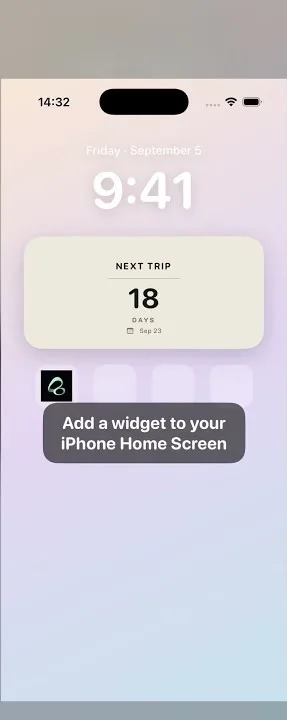
If you already have a Flowment widget, edit its selected card instead of adding another. The video uses an existing widget: choosing the right card is what connects the saved sentences to the Home Screen. For the full installation controls, see how to add a widget to iPhone.
Tap the theme’s crossing-arrows button to request the next sentence. That changes the displayed text; it does not create a new journal or history entry.
If the sentence does not change
- Only one sentence is saved: add at least one more. There is nothing different to display when the collection contains a single entry.
- Rotation is off: enable Rotate sentences and save both the list and the card.
- The control is missing or disabled: check that you are using a rotation-capable theme and a personal no-date card, not a shared or date card.
- The widget shows another card: use Edit Widget to select the intended Daily Words card.
- An edit is not visible yet: check the saved card in Flowment first. Widget refresh is managed by iOS and may not appear immediately.
You can keep the quote beside separate countdown or days-since widgets, as the video shows. If you want one fixed line instead of a rotating collection, use the custom text widget setup guide. For more short-line ideas, explore what to put in an iPhone text widget.
Keep the moment in sight