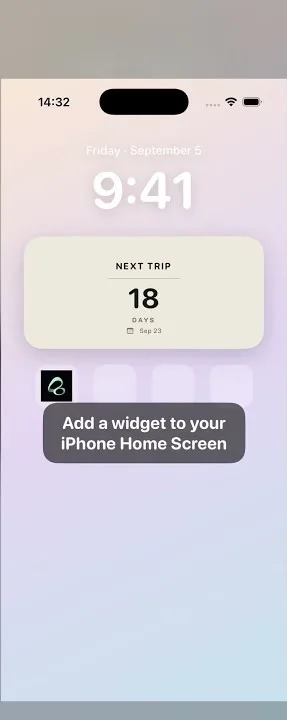
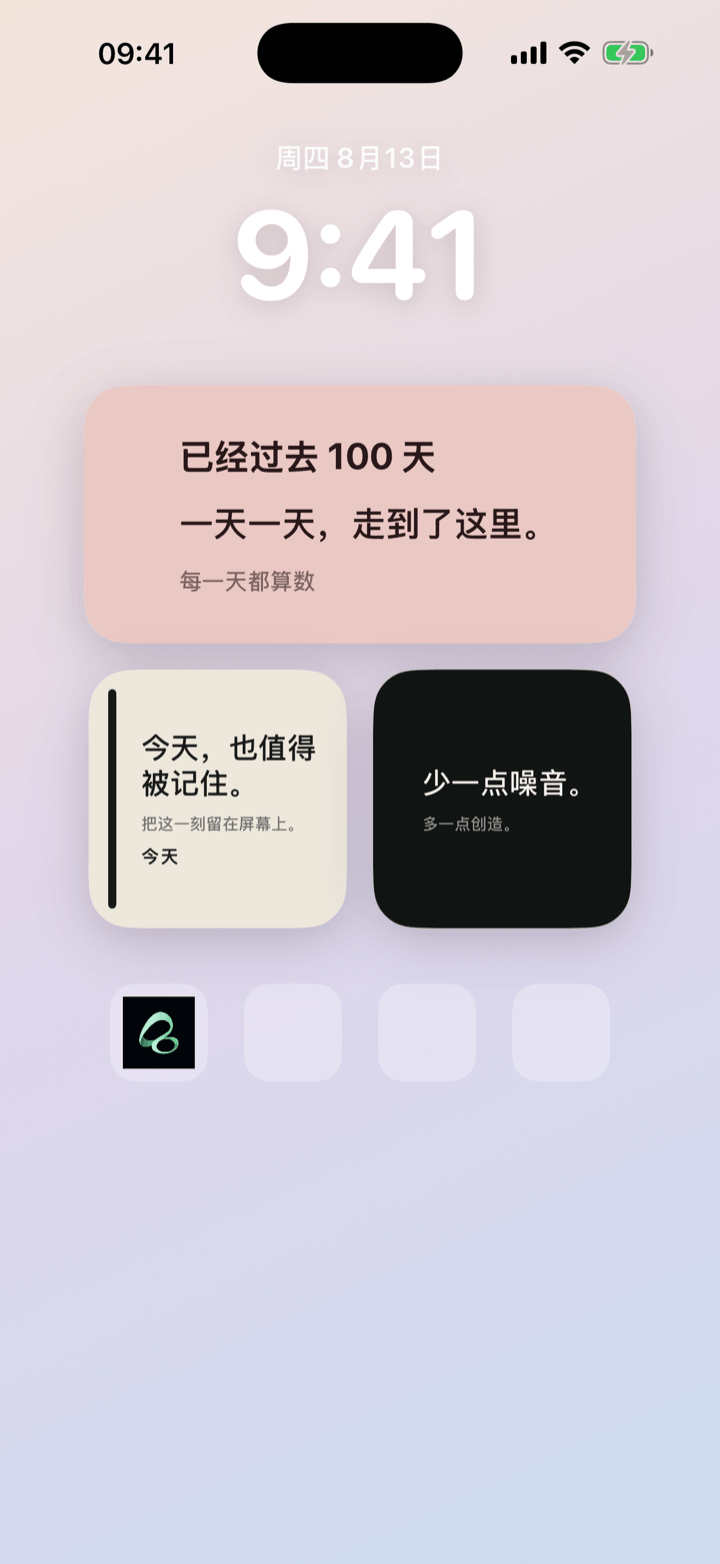
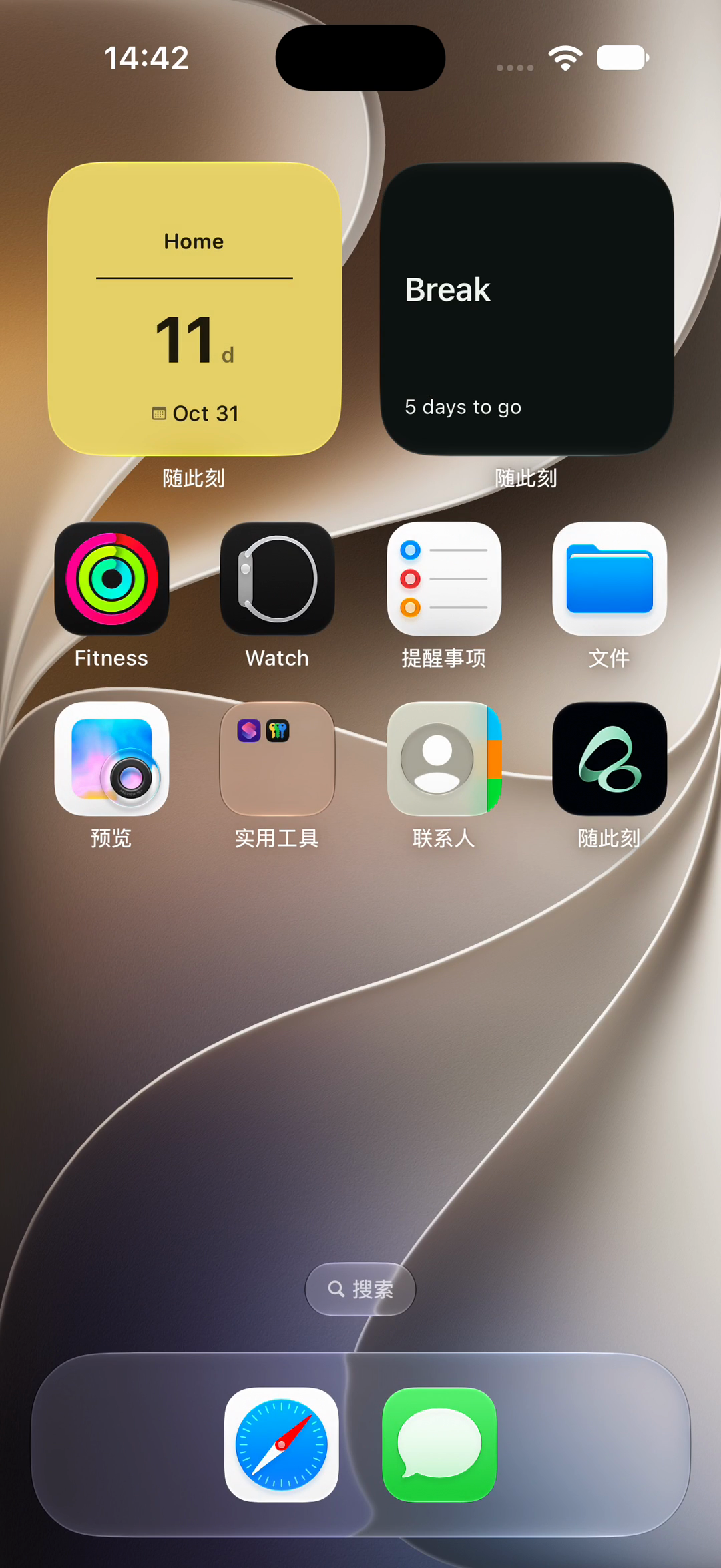
You can design your own iPhone widget theme in Flowment Studio on Mac, export it as a .flowtheme file, then import it into Flowment on iPhone. Apply the theme to a card and select that card in a Home Screen widget. You do not need to write code.
Studio controls the design; Flowment holds the card’s words, dates and supported interactions. The theme works inside Flowment widgets rather than changing other apps’ widgets.
What you need
- A Mac with Flowment Studio.
- An iPhone with Flowment.
- A way to transfer the exported file to your iPhone, such as AirDrop or Files.
For photo backgrounds, daily check-in components and the new built-in number fonts, use Flowment for iOS 1.2.3 or later. Studio can create and export themes independently of the iPhone app.
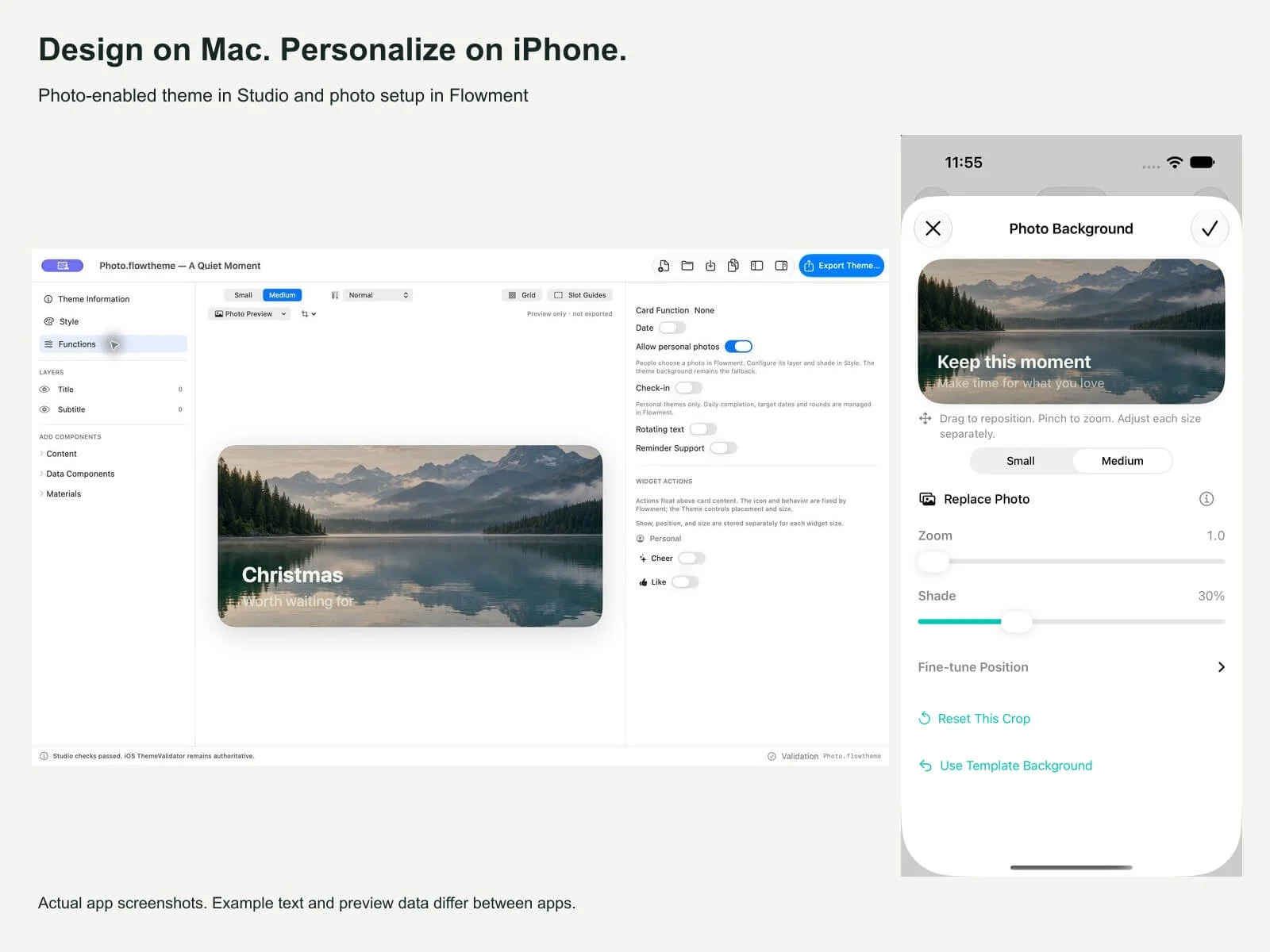
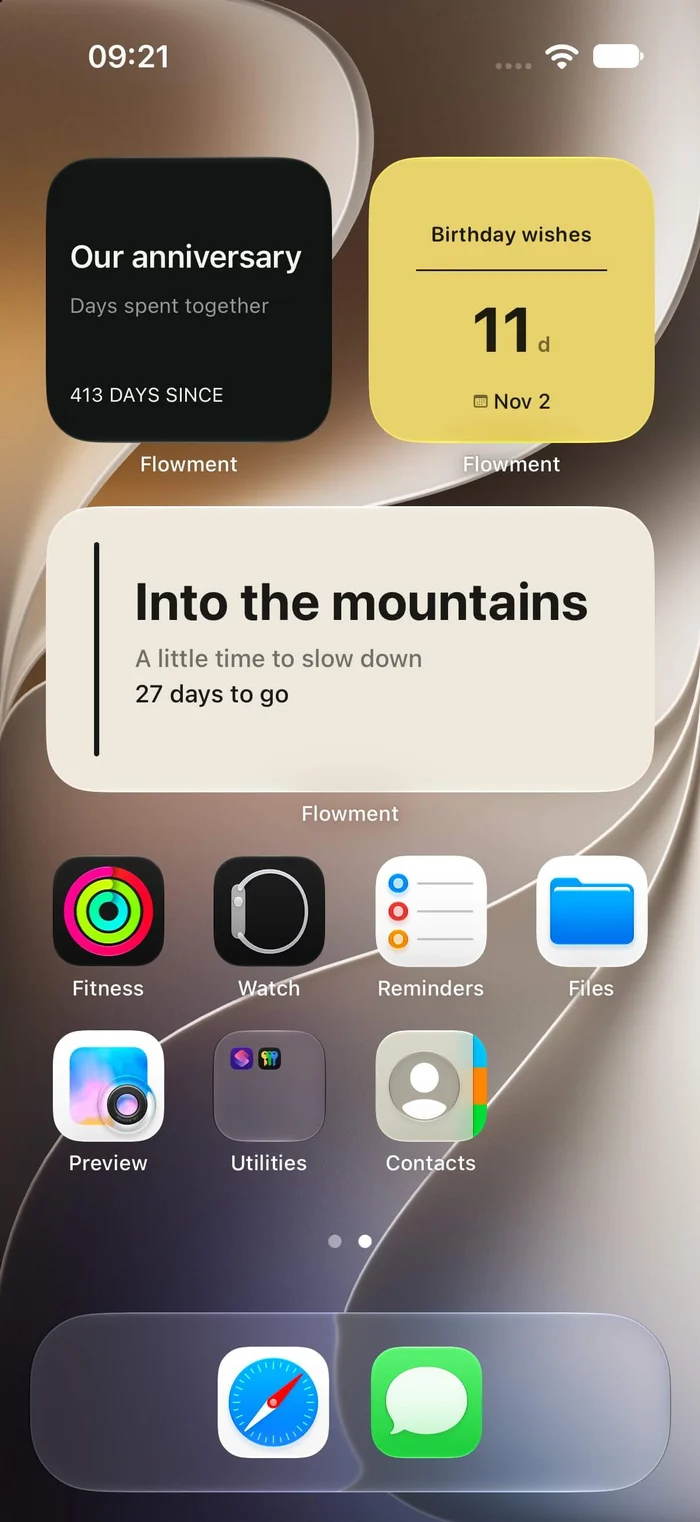
The images use the English interface. The Home Screen was captured in a local simulator on October 22, 2026; the Studio and in-app examples come from the verified October 21 screenshot set. Preview text, dates and numbers are examples and differ between views.
1. Start with one widget idea
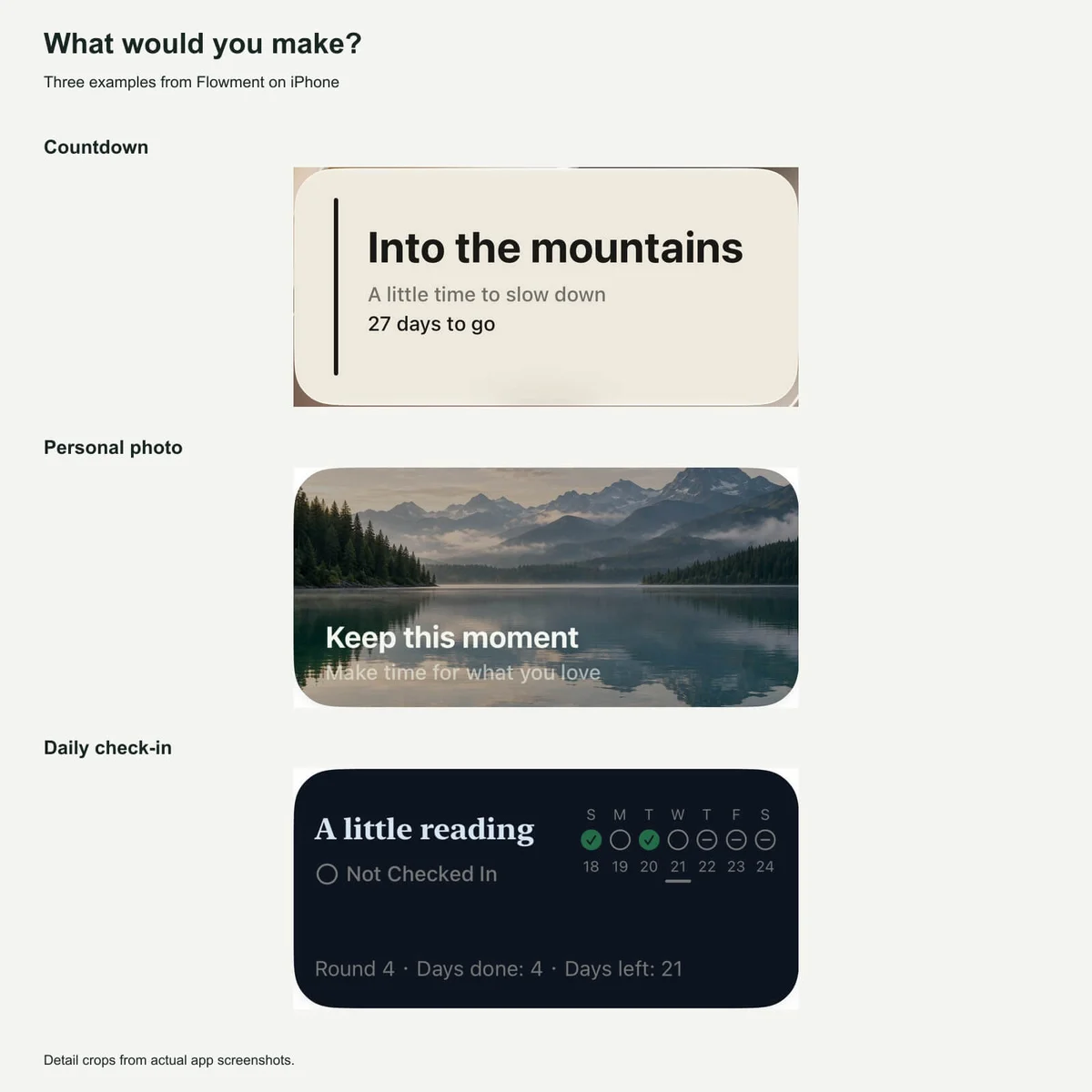
Choose what you want to see each day: a trip countdown, elapsed days since a meaningful date, a personal message or a daily check-in. Start with one clear purpose so the text remains readable at widget size.
2. Design the theme in Studio
Open Studio and choose File → New Theme, or open a supported existing theme. Choose Small or Medium above the canvas.
Add the content and data components you need. Select a layer to adjust its placement, typography and colors. Preview both sizes: a layout that works in Medium may need a different arrangement in Small.
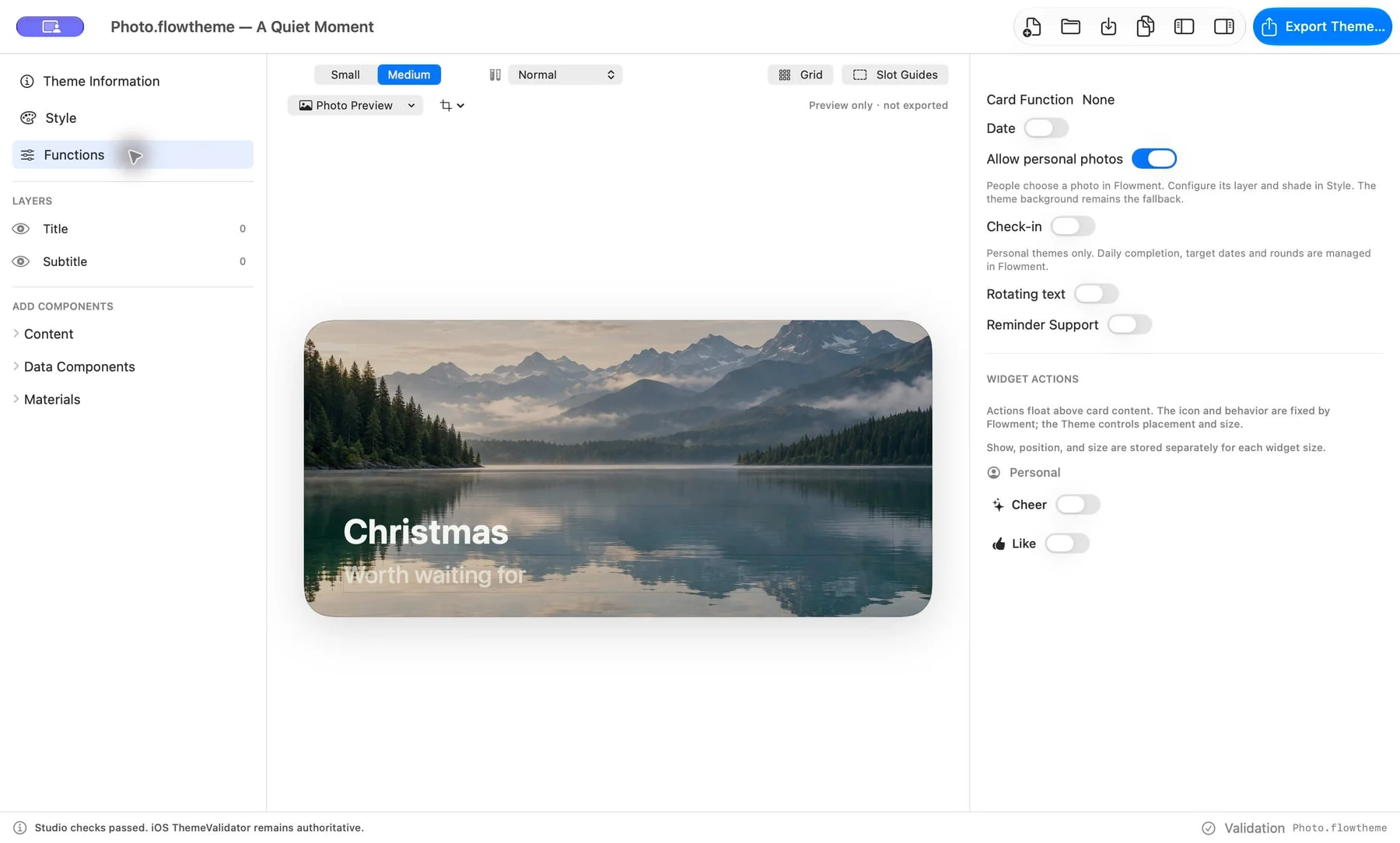
For a photo-enabled theme, enable personal photos in Functions, then configure the photo area and shade in Style. A local preview photo helps check contrast, but that personal photo and its crop are not saved or exported. For check-in themes, the Studio preview uses sample states rather than your actual check-in history.
3. Save, validate and export
Save the working document, then choose Export Theme. Review any compatibility or validation issues shown by Studio before exporting.
Export creates a .flowtheme package containing the theme and its included image assets. Keep the original editable document so you can refine the design later. Exporting a file does not publish it to the theme marketplace.
Transfer the exported file to your iPhone. Use the exported package rather than a screenshot of the design.
4. Import the theme and apply it to a card
In Flowment, open the theme library and use its file-import action to choose your .flowtheme file. Review the import preview and confirm the import. If an import-limit or compatibility message appears, resolve that message before continuing.
Create or edit a compatible card, choose the imported theme, fill in your own words or date, and save. If the theme supports personal photos, choose your photo in Flowment; the local Studio preview photo will not arrive automatically.
5. Put the card on your Home Screen
Add a Flowment widget if you do not have one yet. Then touch and hold it, choose Edit Widget, and select the card you saved. Check both the title and the layout.
Importing a theme, saving a card and choosing that card for a widget are separate actions. See the Home Screen widget setup guide for the system steps. iOS manages widget refresh timing, so changes may not appear immediately.
Is Studio free? What does Flowment charge for?
Flowment Studio is free to create and export themes, with no account required. Flowment is free to download, with one custom theme import slot included.
Flowment Lifetime is an optional one-time purchase for expanded card and import limits, personal cloud sync and full shared history. The US App Store listed it at US$19.99 on October 22, 2026. Theme packs are sold separately and are not automatically included with Lifetime. There are no subscriptions; check your local App Store for current pricing.
Troubleshooting
- The file cannot be imported: confirm that it is an exported
.flowthemepackage and review the compatibility or validation message. Update Flowment if the theme requires a newer renderer. - The imported theme is missing from a card’s choices: check whether its supported functions match that card. Importing a design does not add unsupported card behavior.
- The photo is different or missing: choose it on the iPhone. Studio’s personal preview photo is not exported.
- The widget still shows an older design: confirm that the card was saved with the new theme and that the widget selects that card.
- You reached the import limit: review the free import slot and Lifetime options shown in the app. Importing a theme does not automatically grant paid access.
Start with a simple message or date, check both sizes, and export your first theme. For more editor details, visit Flowment Studio; for product support, open Flowment Help.
Keep the moment in sight