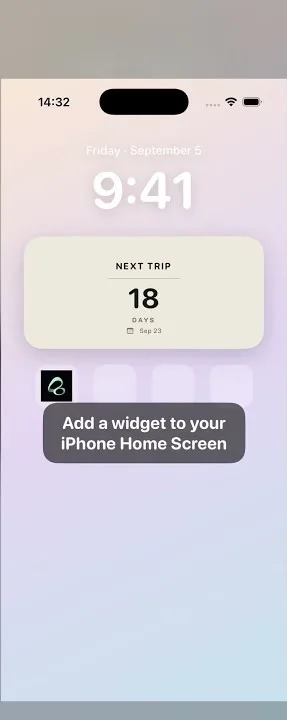
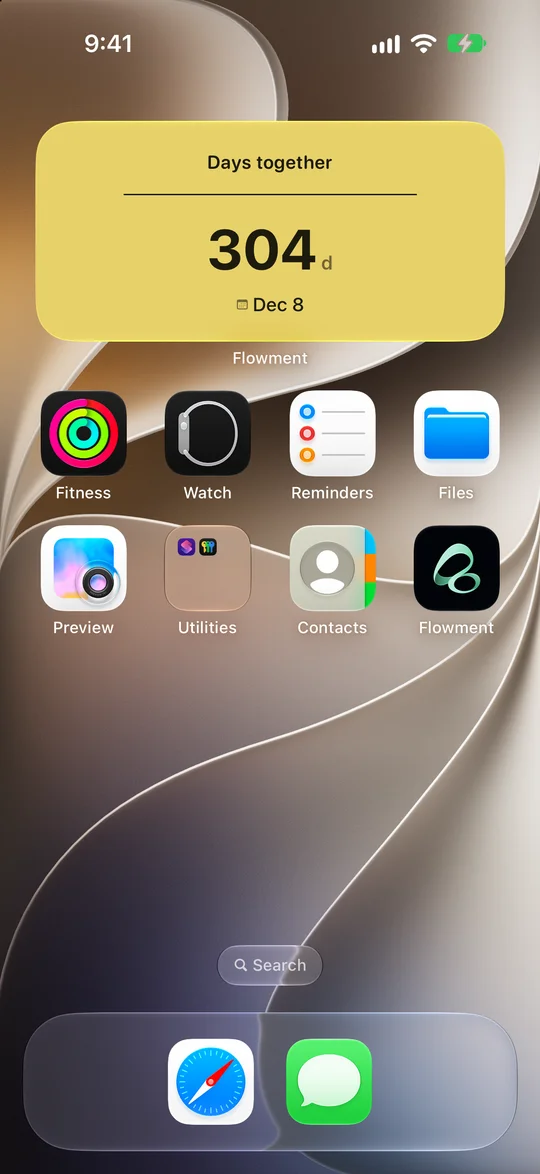
To see how many days are left until your next meeting, create a personal countdown card in Flowment, set the date you will see each other, and choose that card for an iPhone Home Screen widget. It can be a visit to your partner, a family reunion, or a weekend with a friend: one confirmed date, somewhere you will notice it.
Count down to seeing each other, not just leaving home
If you travel overnight, the day you leave and the day you meet may differ. For a card named Next meet, use the date you expect to be together. If you would rather count down to departure, name the card “Leaving for London” or “Trip starts” instead.
Check the full date, including the year. A countdown is a reminder of the plan you enter, not a booking confirmation or a live travel update. Keep your itinerary for exact arrival times.
Create your Next Meet card
- Open Flowment and create a personal date card, or edit an existing one.
- Choose a date style that displays the days remaining until a future date.
- Set the target date to your confirmed meeting date.
- Add a short label: “Next meet”, “See you soon” or “Home with you”.
- Check that the preview shows a countdown, then save the card.
Use a personal card when you only want the reminder on your own phone. The other person does not need to install Flowment, and this setup does not synchronize a date between two phones.
Put the countdown on your Home Screen
- Touch and hold an empty area of your iPhone Home Screen.
- Open the widget gallery and search for Flowment.
- Choose a size and add the widget.
- Touch and hold the Flowment widget, then choose Edit Widget.
- Select the saved Next Meet card and close the editor.
- Check the label and target date on the Home Screen.
Already have a Flowment widget? Change its selected card instead of adding another. Saving a card in the app and selecting it in the widget are separate steps. For the complete Home Screen controls, see how to add a widget to iPhone.
Make the number mean something
The example reads Next Meet · 23 days · Oct 4. It comes from an earlier recording; October 4 and the 23-day count are not a current upcoming date. Use your own confirmed date rather than copying the example.
Keep the label short enough to read beside the number. If you have several visits planned, name the cards distinctly—for example, “Weekend with Alex” and “Home for December”—and check which card the widget is displaying.
When plans change or the widget looks wrong
- The visit moves: edit the target date in Flowment, check the year, and save. Then check both the saved card and the widget.
- Another event appears: open Edit Widget and select the correct card. Changing one card will not change a widget that points to another.
- The number counts up: check that the date is still in the future and the chosen style displays remaining days.
- An edit has not appeared yet: verify the saved card and widget selection first. iOS manages widget refresh timing; an update may not appear immediately.
- There is no confirmed date: avoid inventing one just to keep a countdown running. A simple text card can hold “See you soon” until the plan is settled.
For a one-off calculation before you create the card, use the Days Until Calculator. For the softer relationship side of the idea, read the long-distance countdown guide. If you want to count time already spent together instead, choose a past starting date with the Days Together widget guide.
Keep the moment in sight