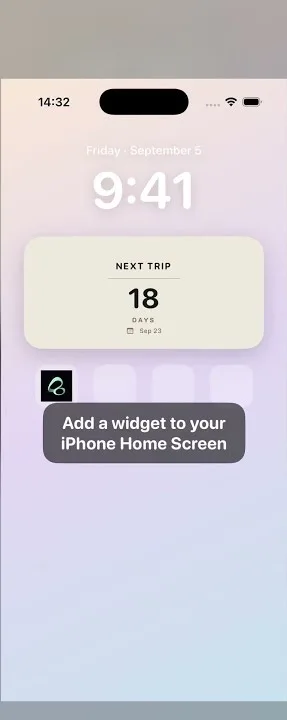
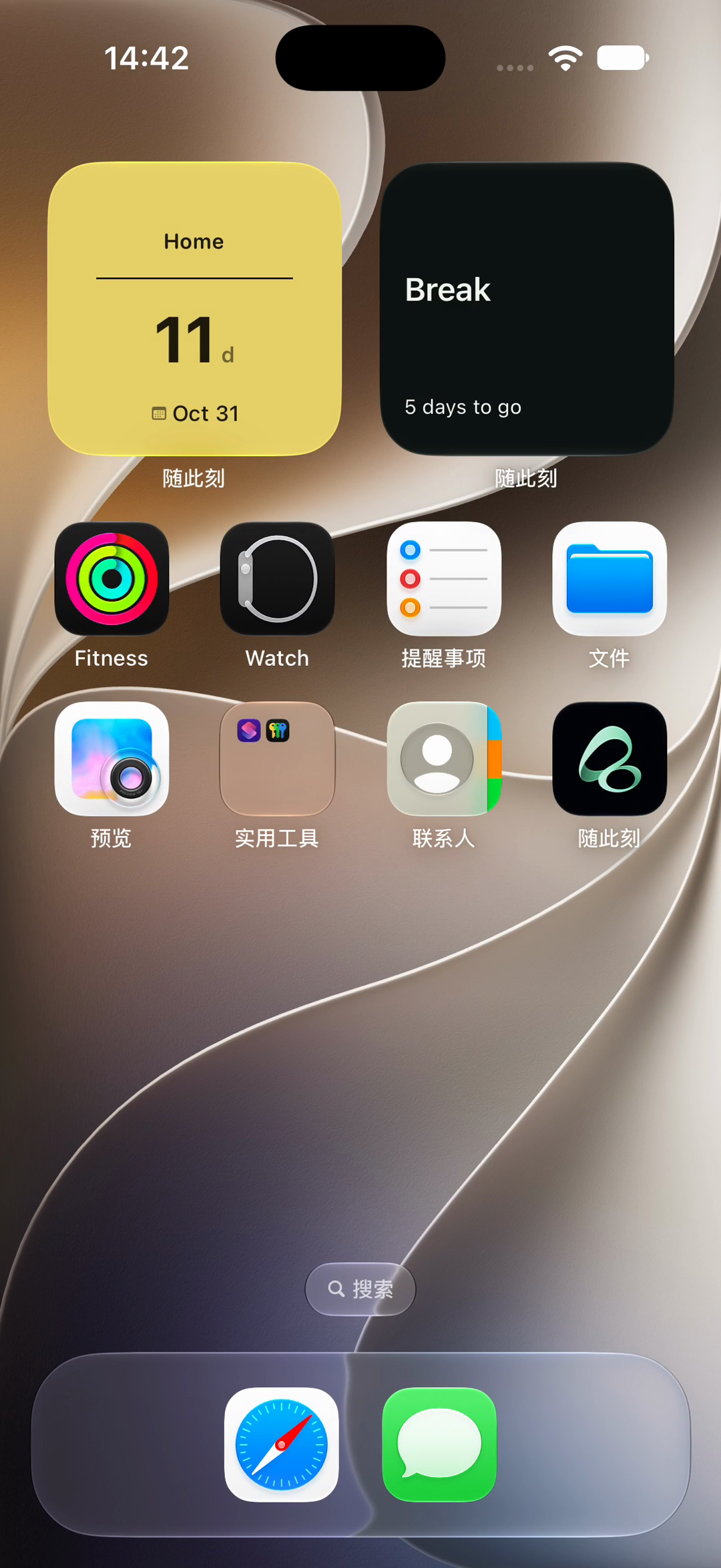
Set a weekly countdown widget on iPhone by creating a date card in Flowment, choosing your next day off, setting Repeat → Weeks → 1, and selecting that card for a Home Screen widget. The same card can count toward the next weekly occurrence, so you do not have to rebuild it each week.
Watch the weekly day-off countdown video
A countdown for the day you actually have off
A weekend countdown is useful only if it counts toward your weekend. If your regular day off is Friday, choose Friday rather than assuming the widget should target Saturday. A weekly dinner, date night, or class can use the same repeat pattern with its own label and date.
This is a countdown to one date each week, not a shift planner or a countdown to the exact hour work finishes. Flowment does not identify your rota, decide which days are public holidays, or move your day off automatically.
The video is a short character story and a Home Screen result demonstration. It does not show the repeat settings being configured. The illustrated cover is promotional artwork; the product image below is cropped from the real Home Screen supplied for this video.
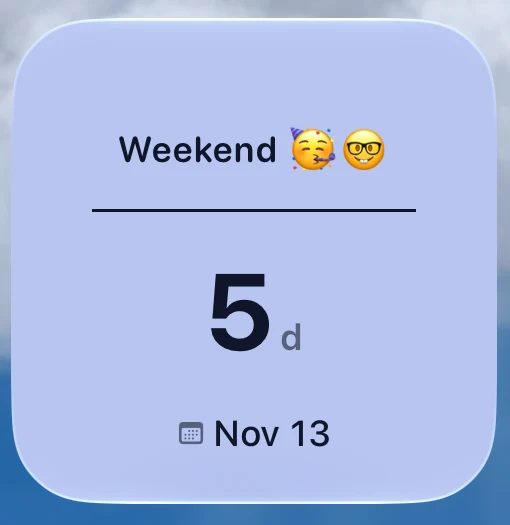
The screenshot was captured on November 8, 2026. “5 d” and “Nov 13” are the recorded example, not a live count for today. The screenshot alone does not prove that Repeat was enabled on that particular card.
1. Choose the next date you want to count toward
In Flowment, create a personal date card or open one you already use. Give it a short name such as “Day Off,” “Weekend,” or “Friday Dinner.” Choose a countdown theme and set the target to the next relevant date, including the correct year.
For example, a Friday day off can start with November 13, 2026. The name “Weekend” is just a label: the date you enter determines the count.
2. Repeat the date every week
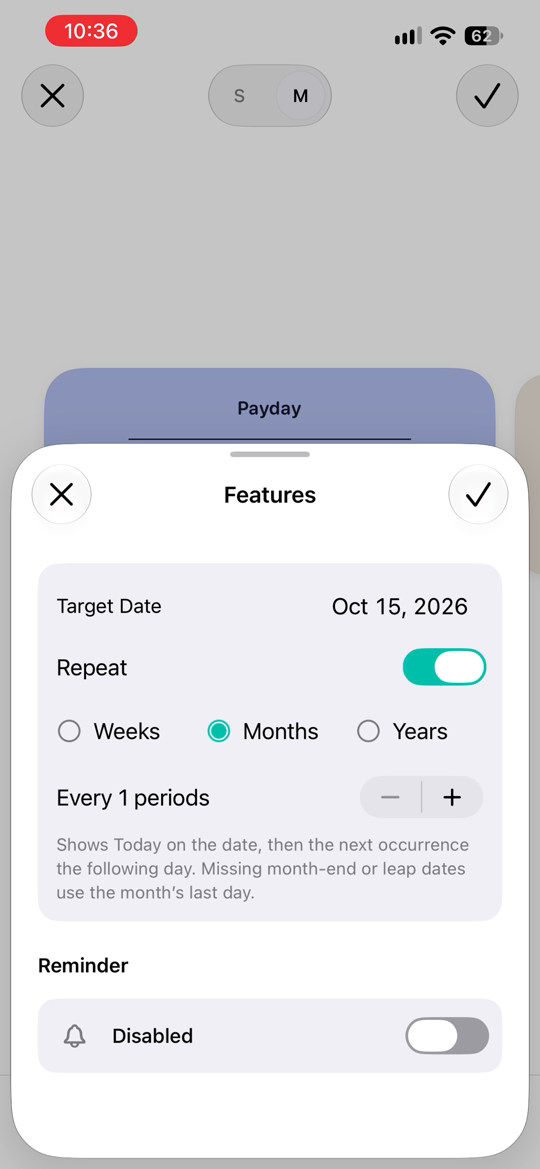
Open the card’s date settings, enable Repeat, choose Weeks, and set the interval to 1. Confirm the settings and save the card.
- Every 1 week: the same weekday each week.
- Every 2 weeks: the same weekday every other week, if that is the interval you choose.
- One-off event: use a non-repeating date card instead.
Use a fixed weekly rule only when it matches your plans. If your working days change irregularly, enter the next confirmed day off yourself rather than expecting the widget to read your schedule.
3. Put the saved card on your Home Screen
Add a Flowment widget, then open its configuration and choose the card you just saved. On iOS, touch and hold the widget and choose Edit Widget when available. You can also enter Home Screen editing mode and open the widget’s card selector there.
Saving a card does not automatically change which card an existing widget displays. If the widget still shows another event, check its selected card first. For the installation steps, see how to add a widget to the iPhone Home Screen.
What happens when the day arrives?
On the target date, the recurring countdown shows Today. The following day it counts toward the next occurrence. With a Friday weekly rule, Friday is Today and Saturday points toward the following Friday; it does not skip ahead while Friday is still in progress.
The rule advances the date, not a completion record. It does not mean you have finished work, attended an event, or checked in.
If the countdown looks wrong
It targets the wrong weekday. Check the target date and the repeat interval in the saved card. Weekly recurrence follows the date you chose.
The wrong event appears. Open the widget configuration and select your Day Off card. For separate events, use multiple countdown widgets and select a different card for each.
The Home Screen has not caught up. Check the saved card inside Flowment first. iOS controls widget refresh timing; a saved change does not guarantee an immediate Home Screen refresh.
You need a monthly countdown. Use the monthly repeat pattern in the payday countdown guide instead of treating a month as four weeks.
Start with one date you look forward to. Set its weekly repeat, choose it for your widget, and let the day count stay somewhere you can glance at it.
Keep the moment in sight