Looking for useful iPhone Home Screen widgets? Three clear types cover most everyday needs: a countdown for what is ahead, a days-since counter for what already started, and custom text for a short line you want to keep in sight. Flowment supports all three as personal cards you can place on the Home Screen.
Watch the short video: Best Widgets for iPhone Home Screen
1. Countdown widget
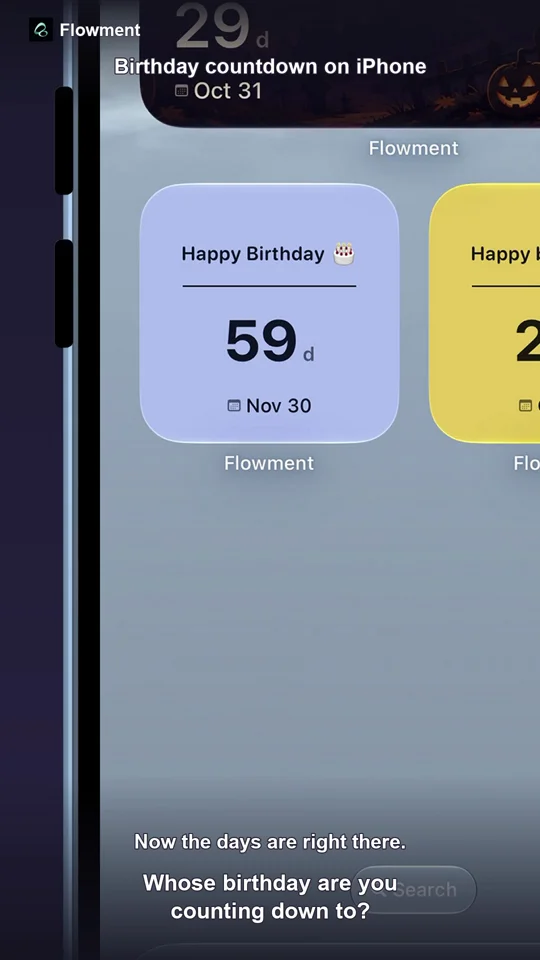
Use a countdown when one future date matters: Christmas, a trip, a birthday, an exam, or the next time you meet someone.
Create one card with the target date and a short label, add Flowment as a widget, and the remaining days stay visible without opening a calendar. For step-by-step setup, see How to add a countdown widget to your iPhone Home Screen.
2. Days-since widget
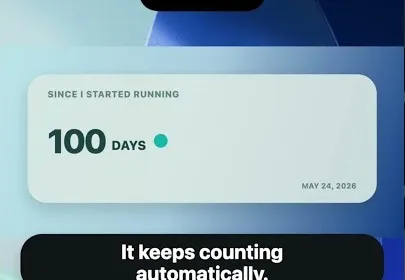
Use a count-up when you want to see how long something has been true: days together, since a habit started, since a move, or since a new chapter began.
Flowment turns the start date into a running total on the card. For the full walkthrough, see How to show days since a date on your iPhone Home Screen.
3. Custom text widget
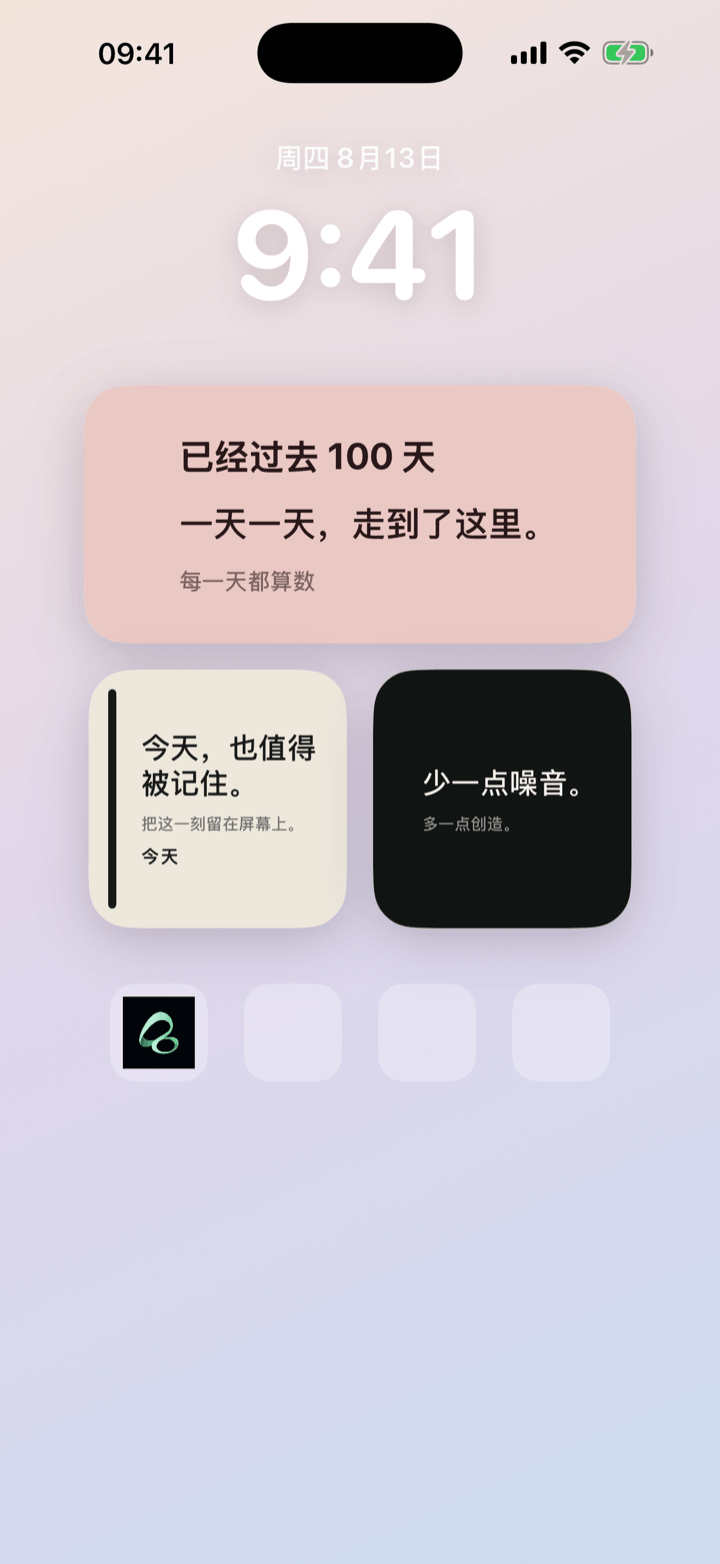
Sometimes the most useful Home Screen widget is not a number at all. A short line such as “Take it slow.” or “See you in 12 days.” can be enough to set the tone for the day.
Create a text card in Flowment, choose a readable style, then add it as a widget. For the exact steps, see How to add a custom text widget to your iPhone Home Screen.
Put more than one widget on your Home Screen
You do not need one app for each idea. In Flowment, create separate cards for separate purposes, then add multiple Flowment widgets and assign each one its own card.
- Open Flowment and save the cards you want visible.
- On the Home Screen, touch and hold the background until the apps jiggle.
- Tap Edit, then Add Widget, search for Flowment, and add a size.
- Repeat for another widget size or placement if you want countdown, days-since, and text together.
If you are new to the widget gallery, How to add a widget to your iPhone Home Screen covers the basics first.
Which widget should you start with?
| If you want to see… | Start with… |
|---|---|
| Days until an event | Countdown |
| Days since a date | Days since |
| A short message or reminder | Custom text |
One focused card per widget usually reads better than trying to combine every idea into a single layout.
If Flowment does not appear in the widget list
Open Flowment once, create and save at least one card, then return to the Home Screen and try Add Widget again.
If a widget shows the wrong card, long-press it, choose Edit Widget, and pick the card you meant to display.
Does every widget update immediately?
Not always. iOS controls widget refresh timing, so a saved edit may take a little time to appear. Opening Flowment after saving can help the system pick up the latest card.
For more layout ideas beyond these three types, see iPhone Home Screen cards: keep what matters in sight.
Keep the moment in sight